


So, you’ve installed VCF Automation 9, and you’re all excited to peek inside your shiny new virtual machines via Web Console or VMRC Client. Only… nothing happens. No console, no love, no joy. Just a blank stare and a silent scream.
Don’t worry — it’s not you, it’s your certificates.
Turns out, VCF Automation 9 is a bit picky when it comes to trust issues. If it doesn’t have the correct Certificate Chain, then console access is a no-go. Let’s fix that, shall we?
Step 1: Grab That Root-CA Certificate from vCenter Like a Pro
Why isn’t console redirection working after installation? Because VCF Automation is basically saying, “Who even are you?” to the vCenter — it doesn’t know or trust it yet.
Time to change that. Go to your vCenter URL: https://<your-vcenter>
Important: strip off everything after the domain. Once you’re there, look for this link: Download trusted root CA certificates
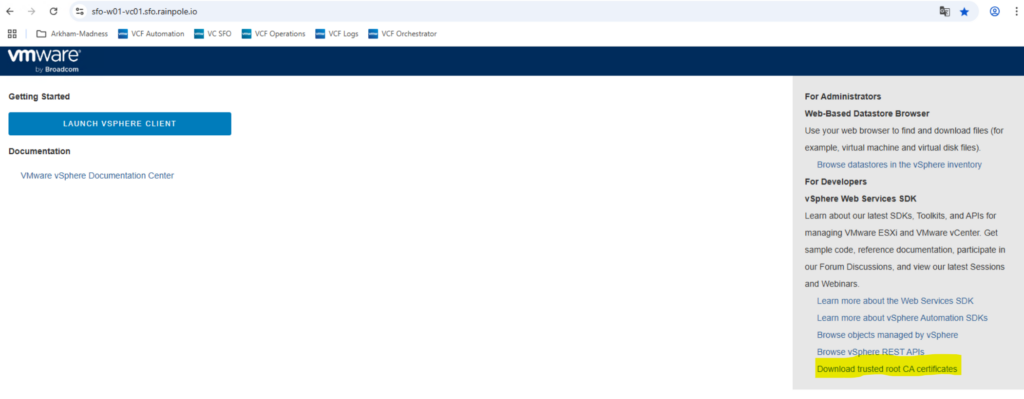
Right-click that like you mean it and hit “Save link as…” — you’ll get a download.zip. Unzip it and dig into the folders like a digital archaeologist into \certs\win\

Find the first .crt file. Copy it and rename it to have a .pem extension — because VCF Automation only speaks fluent PEM.
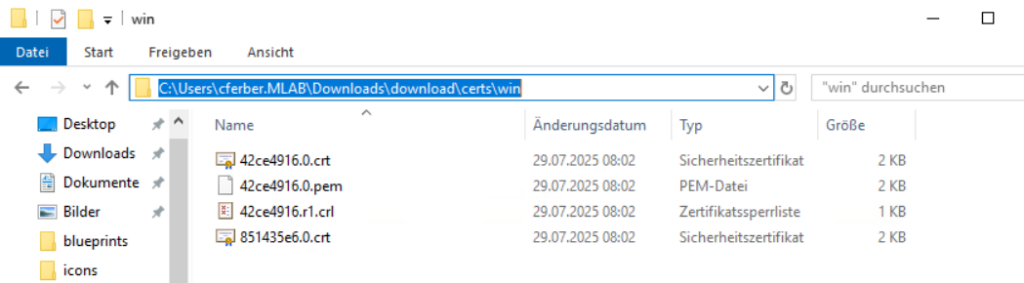
Step 2: Introduce the Certificate to VCF Automation
Now that you have your freshly renamed .pem file, it’s time for the ceremonial import.
- Log in to the VCF Automation provider interface (aka system tenant) as admin.
- Head to Certificate Management.
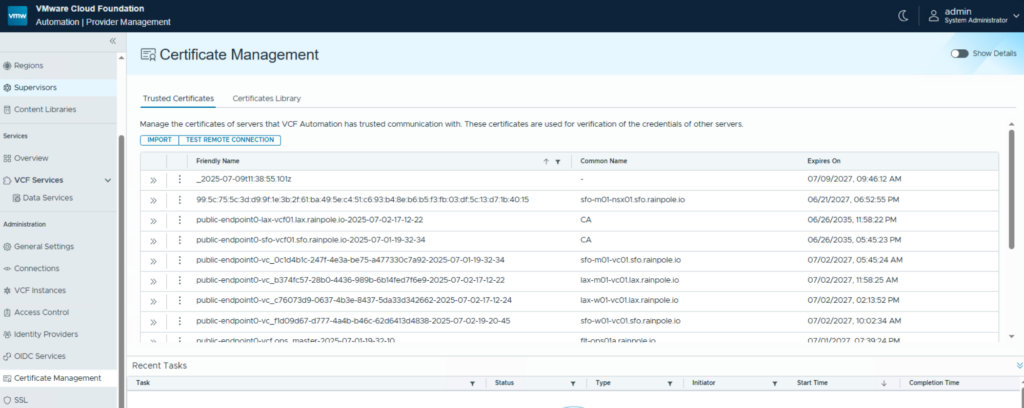
- Click that Import button.
- Choose your .pem file and give it a warm welcome.
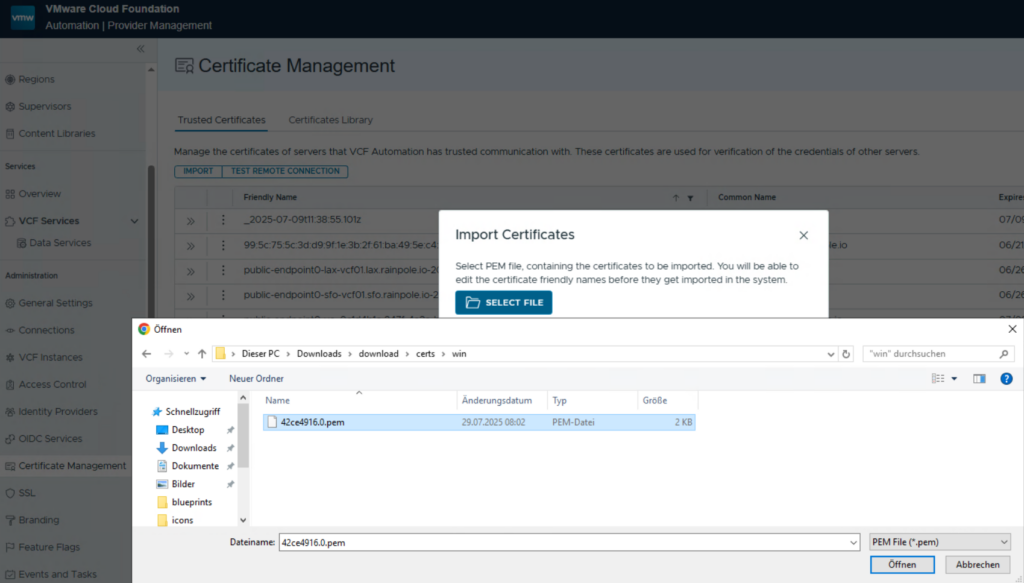
Voilà! Your certificate now proudly sits in the list of Trusted Certificates, sipping coffee and getting ready to enable console magic.
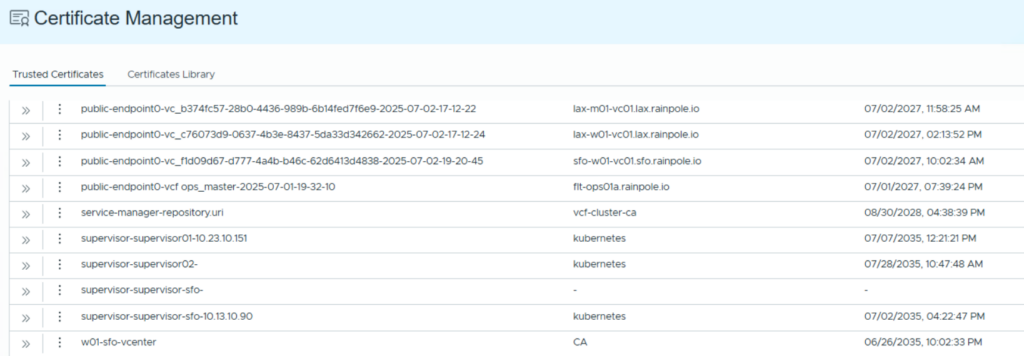
Step 3: Console Access – Let’s Light It Up
To see if all that certificate drama paid off, test the console access in an All-Apps-Org. You’ll need a VM that was deployed from a catalog or provisioned via the VM service beforehand.
In the VM details, look up top for:
- Open Remote Console (requires VMRC Client)
- Open Web Console (no client, no problem)
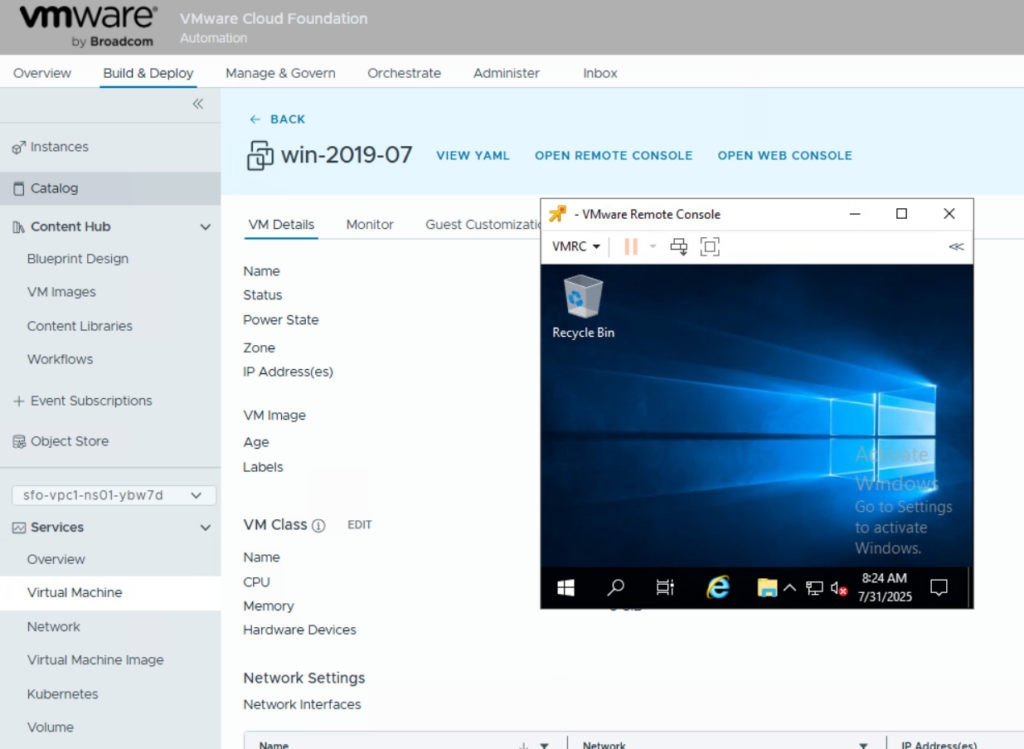
Also, sneak over to the Actions menu of the VM — if it was deployed from the catalog, you’ll find the day-2 options hiding in there.
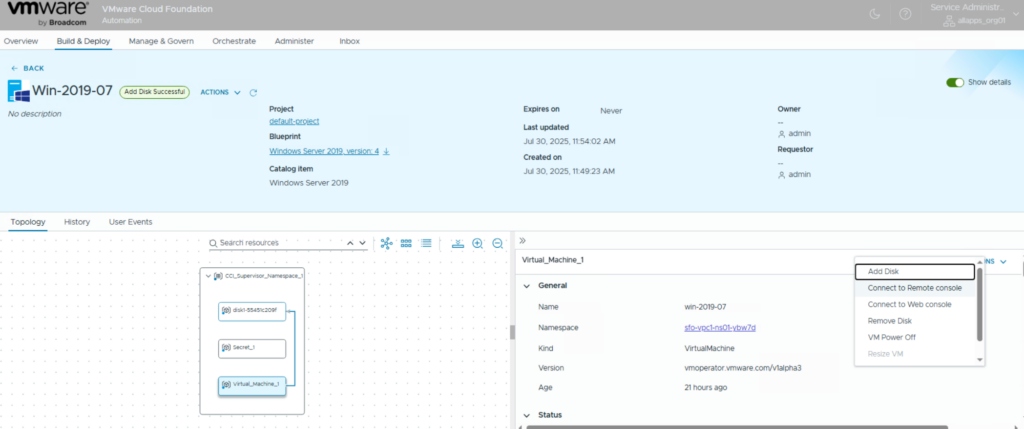
Congrats! You’ve now convinced VCF Automation to trust your vCenter, imported the certificate, and unlocked the magic portals to your VMs. Console access is yours. Go forth and monitor those VMs like the boss you are.
Have fun!

- VCF Automation 9 – Present Kubernetes labels as dropdown - 18. August 2026
- VCF 9 – Automated Offline Depot Server Creation - 19. May 2026
- VCF Automation 9 – Content Libraries - 18. May 2026