


VCF Automation 9 is intensively using Content Libraries to store images. Aria Automation 8.18 already included Content Library support which has persisted in the VCF 9 VM-Apps-Org. However, the All-Apps-Org is 100% based on Content Library leverage and has a completely different architecture. Find more details on the Aria Automation 8.18 Content Library architecture in my other blog. The information can completely applies to the VM-Apps-Org as well.
In this blog I will focus on the All-Apps-Org only and explain the different types of content libraries and their functionalities. Some of the capabilities have been introduced in VCF Automation 9.1 (e.g. project-based content libraries) and will not be available in previous versions.
Content Library types
There are 3 different types of content libraries which can be leveraged for different use cases. Let me explain them in more detail.
|
|
Provider Content Library |
Organization Content Library |
Project Content Library |
|
Available cross tenants |
X |
– |
– |
|
Upload |
Provider only |
Organization users based on org permissions |
Project users based on project permissions |
|
Subscribe to external Content Library |
X |
X |
X |
|
Subscribe to Canonical Content Library |
– |
X |
X |
|
Namespace Capturing |
– |
– |
X |
|
Project assignment |
All projects |
All projects |
1 or multiple projects with different permissions |
|
Based on vSphere Content Library |
X |
X |
– |
|
OVA / OVF |
X |
X |
X |
|
ISO |
X |
X |
– |
Provider Content Library
- Managed by the Cloud Administrator on the provider level
- Available across all tenants
- Global repository for images
- Tenants only have read permissions to leverage the templates made available by the provider
- They are made available on a per-region basis and can be attached to multiple regions.
- All Organizations/Tenants which have access to the region(s) will have access to the global Content Library.
- It can subscribe to an existing Content Library.
- Does not support namespace capturing
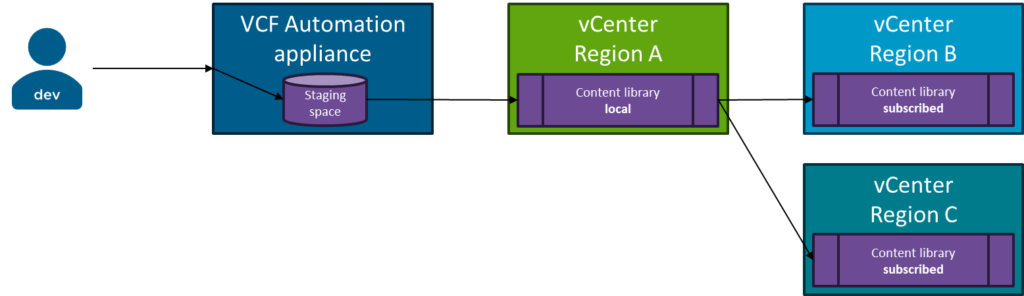
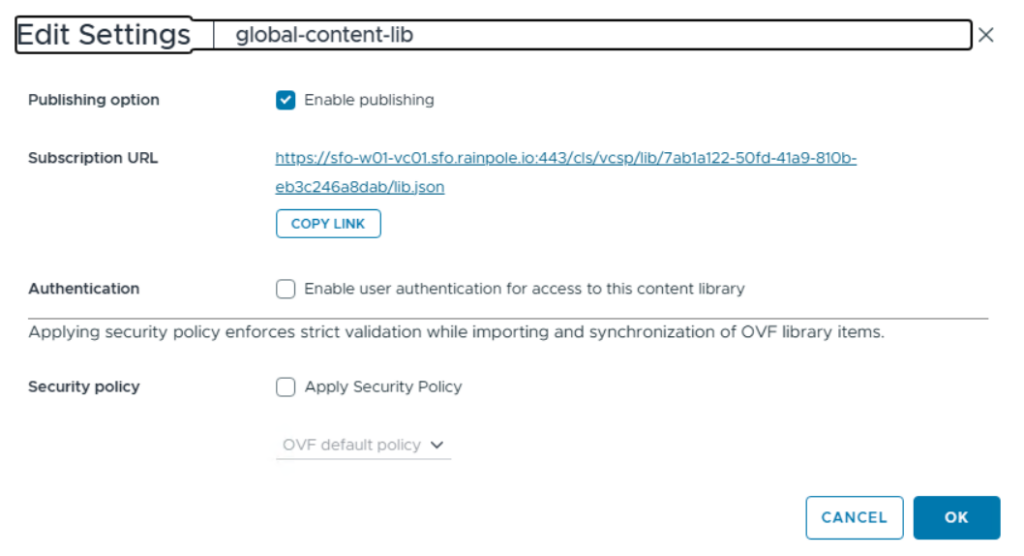
Provider and Organization Content Libraries are similar. They will be created as vCenter Content Libraries but do have a different scope in VCF Automation. When a Content Library is generated, you can select to apply it to 1 or multiple regions. If multiple regions are selected, VCF Automation creates 1 Content Library in each region where one of them is configured as a “Local” Content Library and the others are configured as “Subscribed” Content Libraries. The latter ones sync the images from the “Local” Content Library.
Find here an example of a “Local” Content Library configured by VCF Automation:
This is an example configuration of a “Subscribed” Content Library configured by VCF Automation:
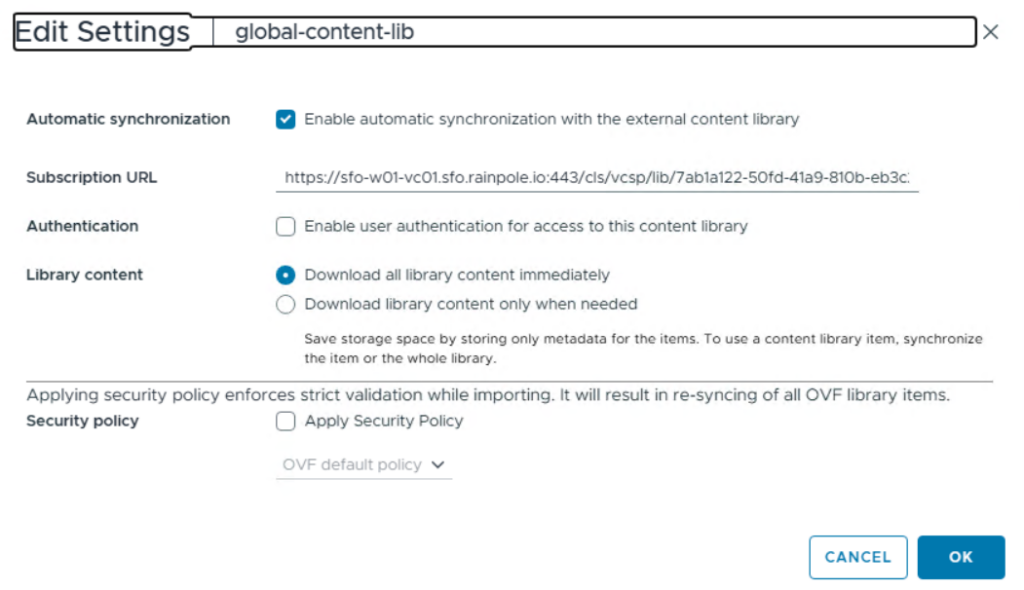
If you want to define the Region which receives the “subscribed” Content Library, I suggest creating the Content Library with this region first and then add the other regions in a second step. Enabling the Content Library for multiple regions in the first step will select the region with “subscribed” Content Library based on the datastore (per storage policy) with the most available space. In a vSAN environment this might appear as random selection.
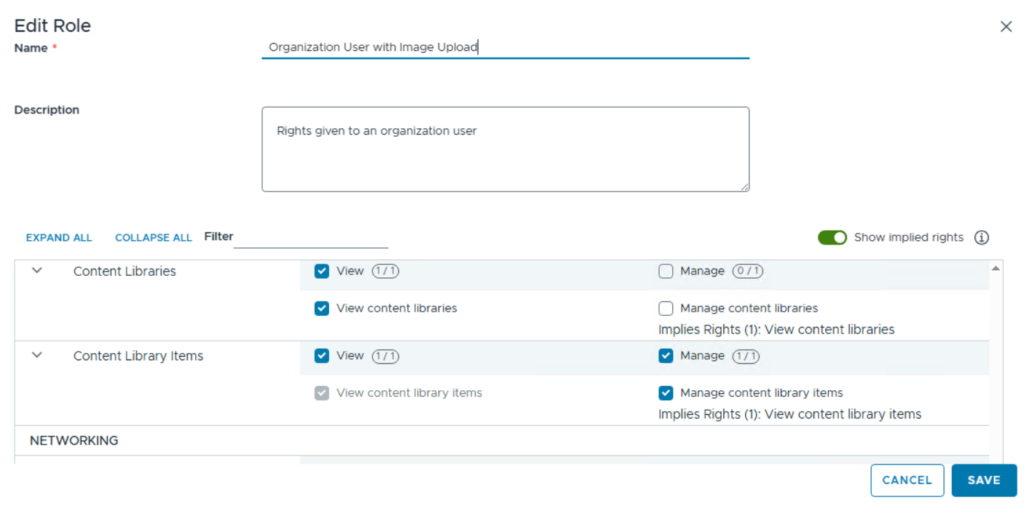
To grant a user Image Upload permissions you must create a role which has the “View content libraries and “Manage Content Library items” permissions as per below screenshot.
Organization Content Libraries
- They are created within an organization and cannot be shared across organizations.
- Managed by Organization Administrators
- Supports subscription to an external Content Library
- Supports subscription to a VMware-managed Canonical Content Library
- Can be assigned to multiple regions if the organization has access to them.
- A VMware-managed canonical Content Library can be subscribed to.
- Does not support namespace capturing
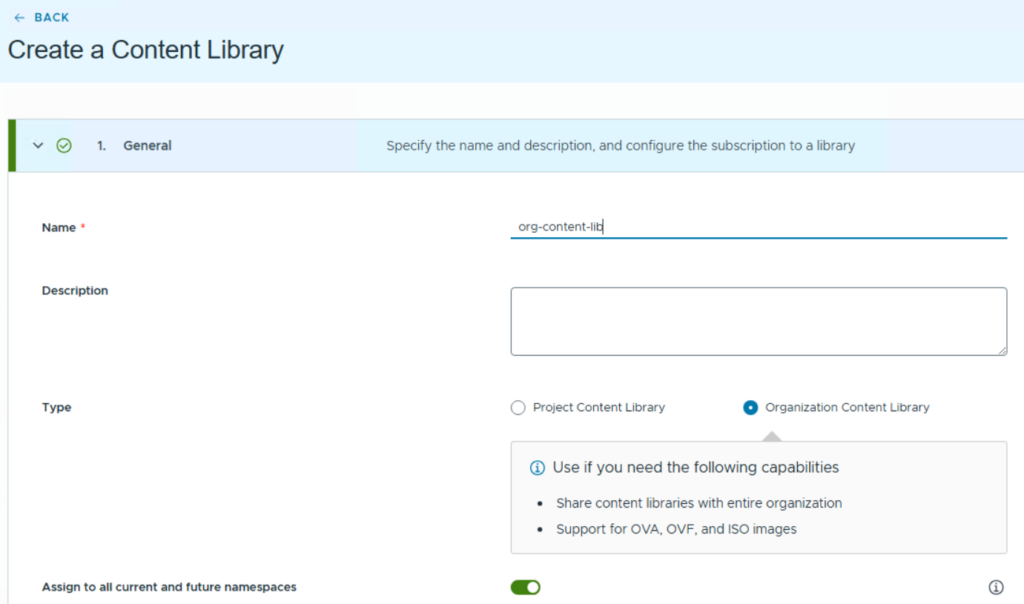
Organization Content Libraries have the same architecture as Provider Content Libraries. The difference is that they are created within an organization and cannot be shared between organizations.
When creating a Content Library in VCF Automation 9.1 there is an option for either an Organization or a Project Content Library. As the Project Content Library has been introduced in VCF Automation 9.1, you will not find this option in older releases. See more details on Project Contant Libraries in the next section.
Project Content Library
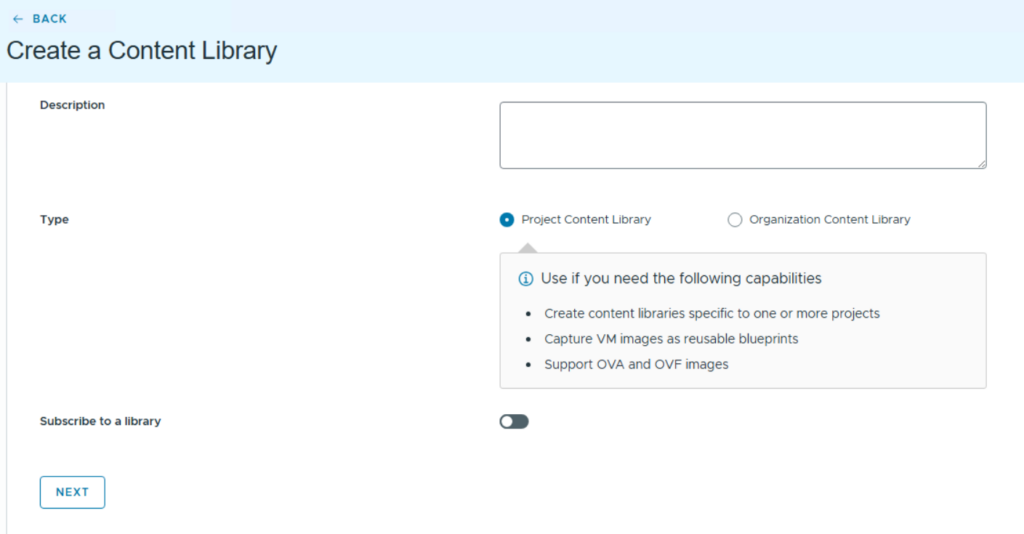
A Project Content Library has been introduced with VCF Automation 9.1. Its main intent is to provide content sharing capabilities within a project or between select projects. It also is leveraged by the namespace capture feature in VCF Automation 9.1.
- Can be assigned to 1 or multiple projects
- Supports namespace capturing
- Supports subscription to an external Content Library
- Supports subscription to a VMware-managed Canonical Content Library
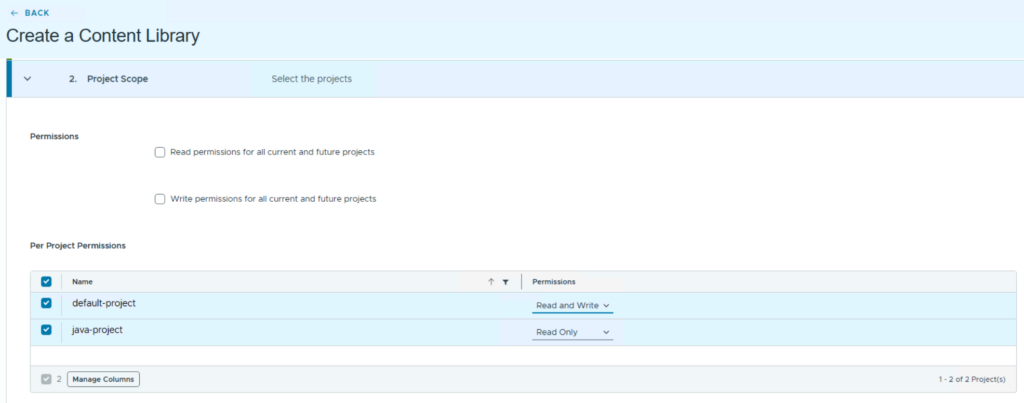
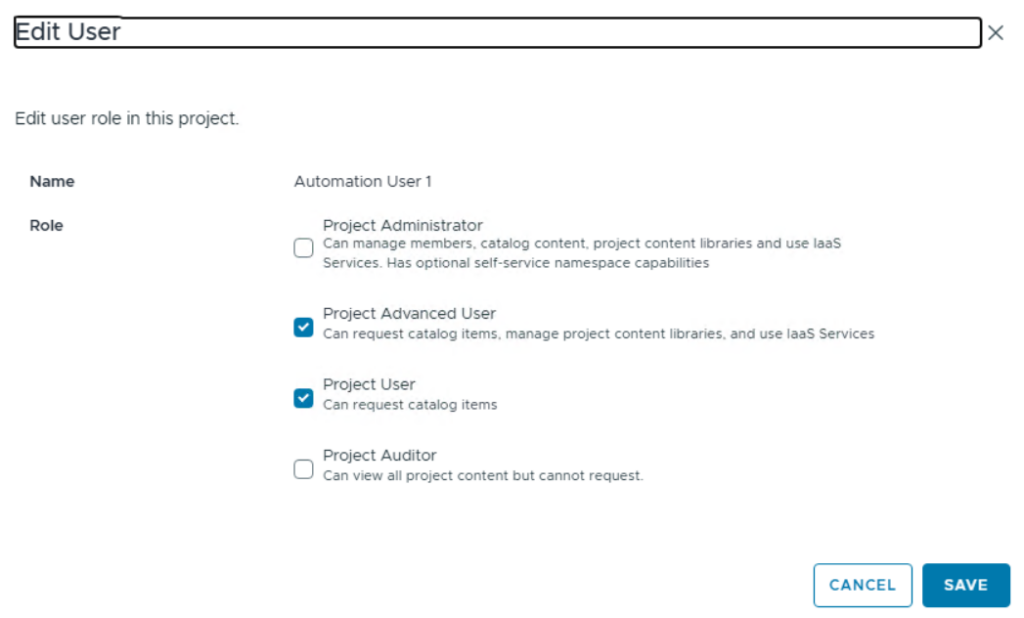
- Read/Write permissions can be granted on a per-project-basis. Write permissions allow capturing of namespaces, but don’t grant general image upload permissions. To have upload permissions as well, the user must be a “Project Advanced User”
Find below the general flow how to create a Project Content Library:
The permission screen either allows us to set permissions for all projects or to select which permissions apply to specific projects.
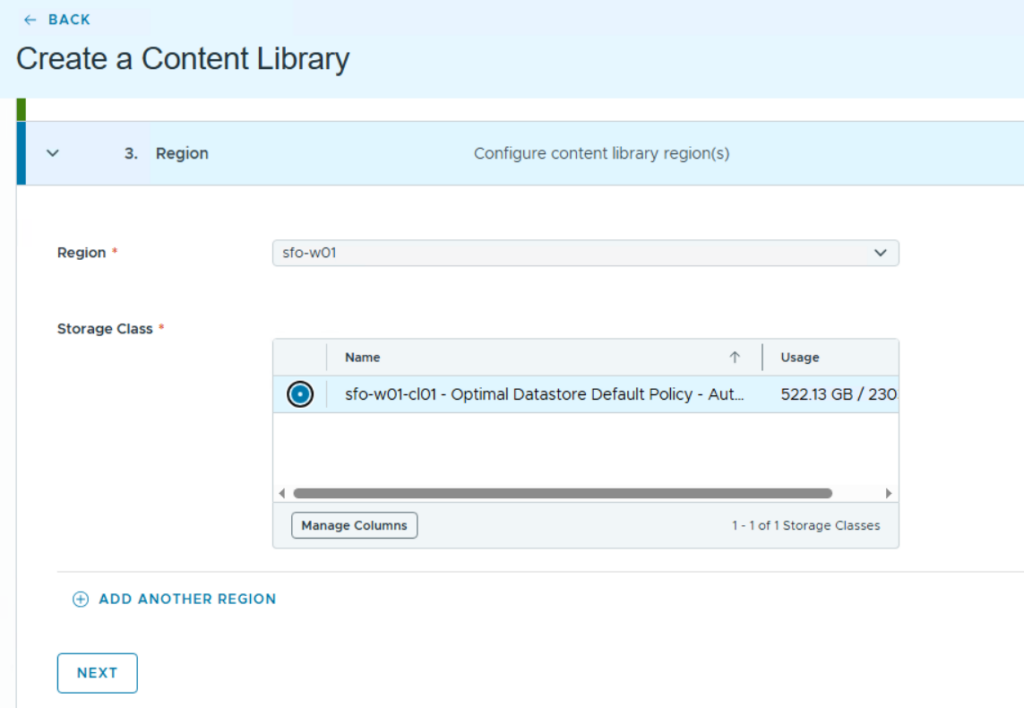
As for other Content Libraries, the storage class defines which storage will be used to host the images managed.
From a user permissions view a normal project user can use the Project Content Library, but he can’t upload images. To upload images the user must be a “Project Advanced User” and in addition he must have read/write permissions to the Project Content Library in question. A user who should only have write permissions to some Project Content Libraries does not require Content Library view permissions on an org level.
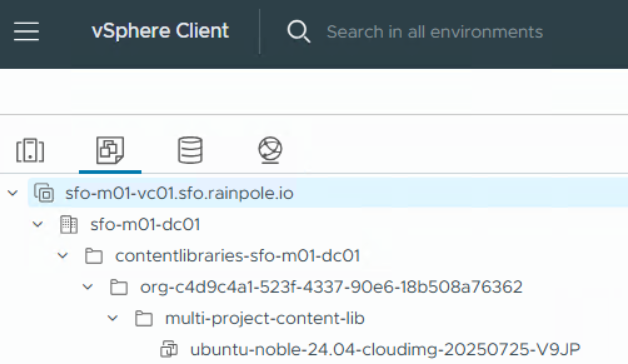
In the vCenter where the Project Content Library has been created (region assigned) you won’t see a vCenter Content Library configured. Instead, you will see a Content Library VM folder which contains sub folders for each Project Content Library created. As soon as you add another region to the Content Library, the folder structure on the respective vCenter will be created.
The sub folders contain powered off VMs for each image which has been captured. There is no network interface configured on the VMs however.
The VMs can be powered on to update the image content in vCenter. You can decide to add a network interface to it to allow for an external connection. If you deploy a new VM from a template, the network will be defined based on the deployment parameters. Any network configuration on the template itself will not be honored.
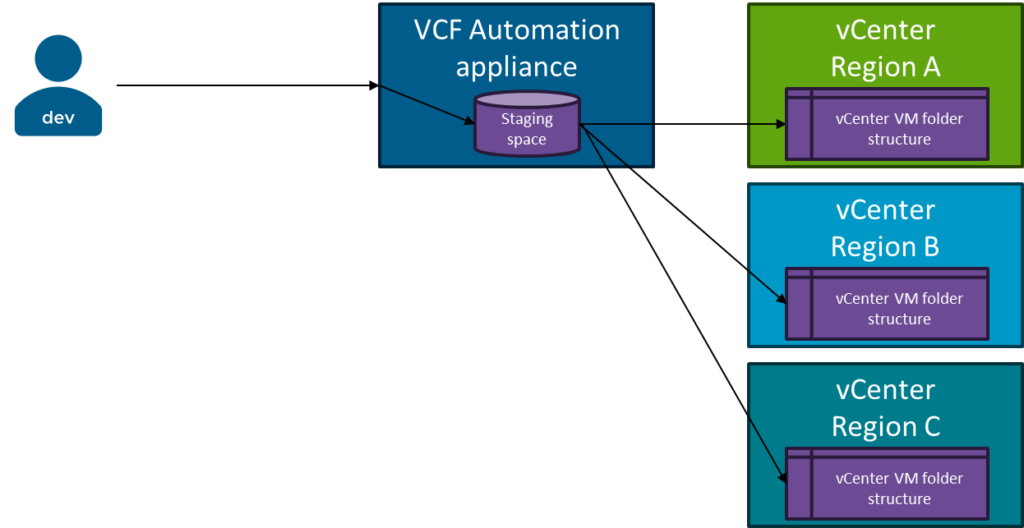
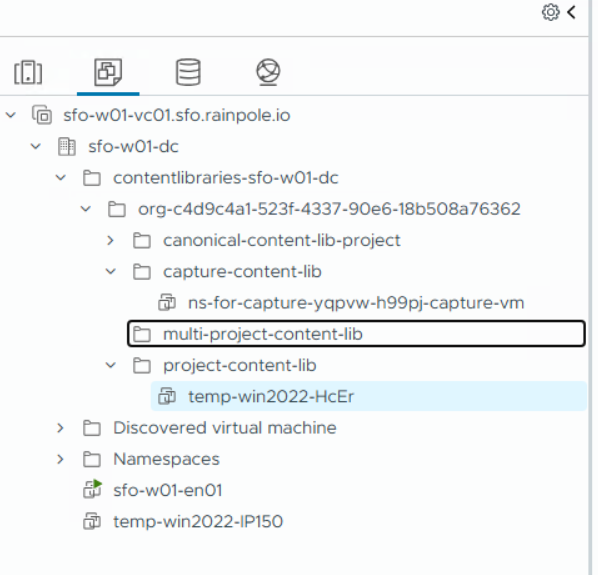
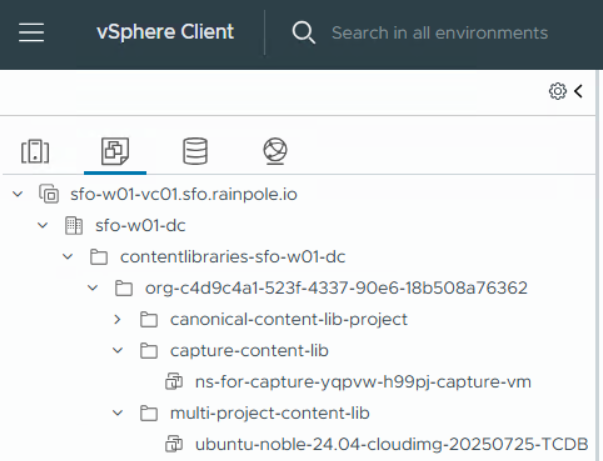
If you have multiple regions configured for a Project Content Library, after an image upload you will see the same structure in all the vCenters. VCF Automation copies the image to all the assigned regions. The images get a custom ID postfix in the VM name.
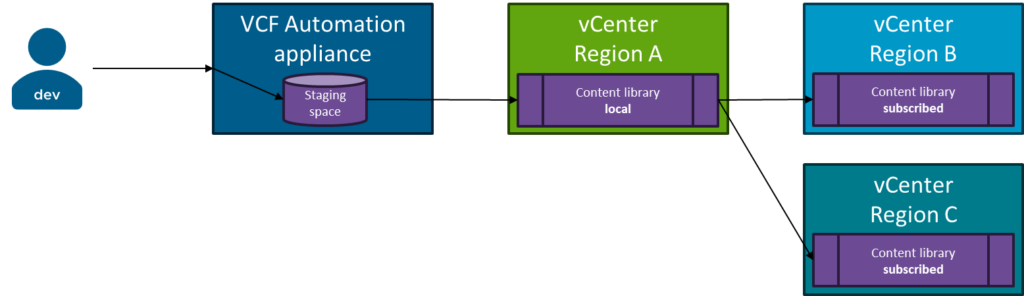
Content Library Image Upload
The image upload is done in 3 tasks:
- First the image is transferred to a temporary storage area on the Automation appliance
- Second the image is transferred to the vCenter which hosts the Content Library
- Third the image will be transferred to the subscribed content libraries by standard vCenter capabilities
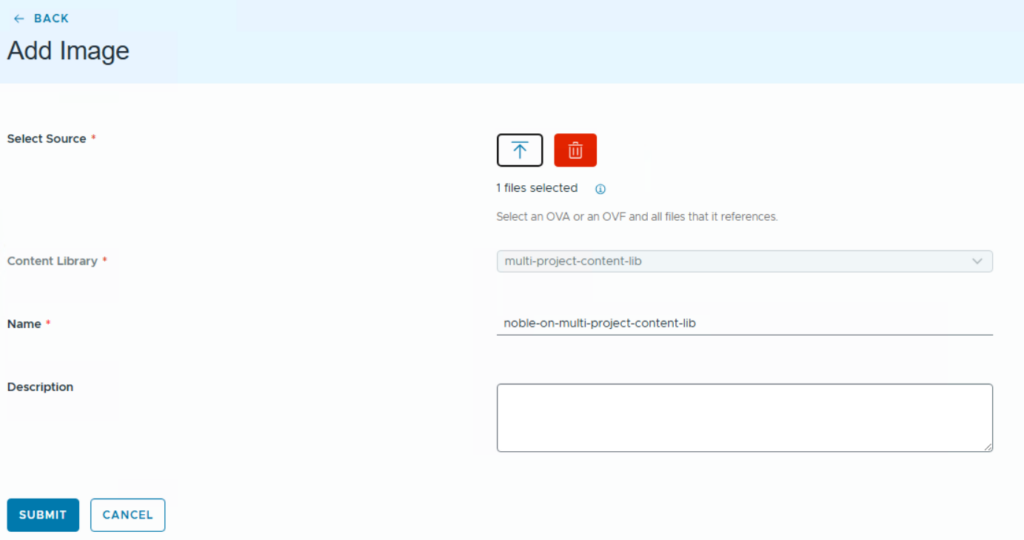
For the image upload you select the appropriate image in the first dialog and provide a name and description. Make sure you have the right Content Library type for the file type as ISO is only supported by Provider or Organization Content Libraries.
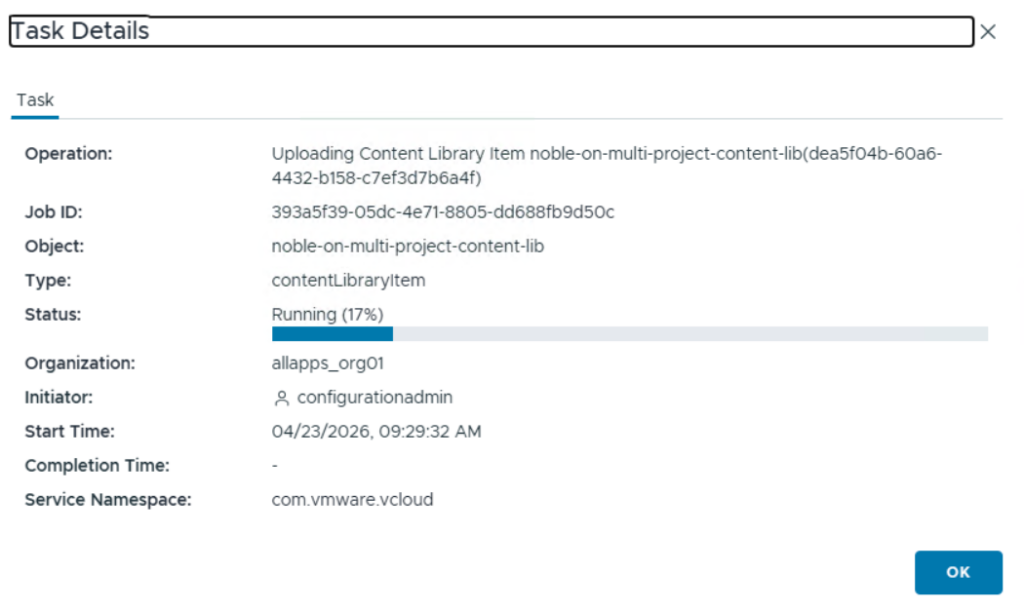
After an upload has started you will see a progress bar. In the first 50% of the progress bar the image is uploaded to the VCF Automation appliance. Once that is done, the vCenter upload starts and the bar goes beyond 50%. We have experienced a “jump” of the progress bar in situations where the vmdk size is not stored on the OVF description. The upload will still work, but the progress bar might be misleading.
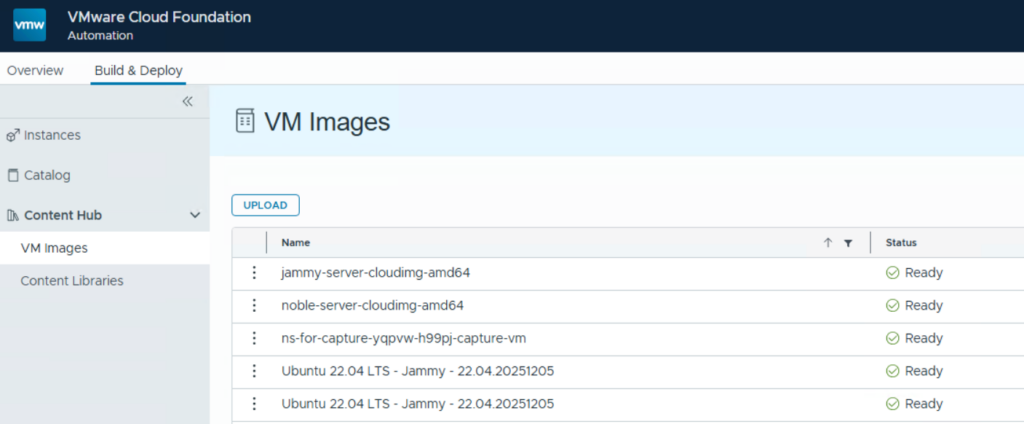
Once uploaded you will see the images in VCF Automation.
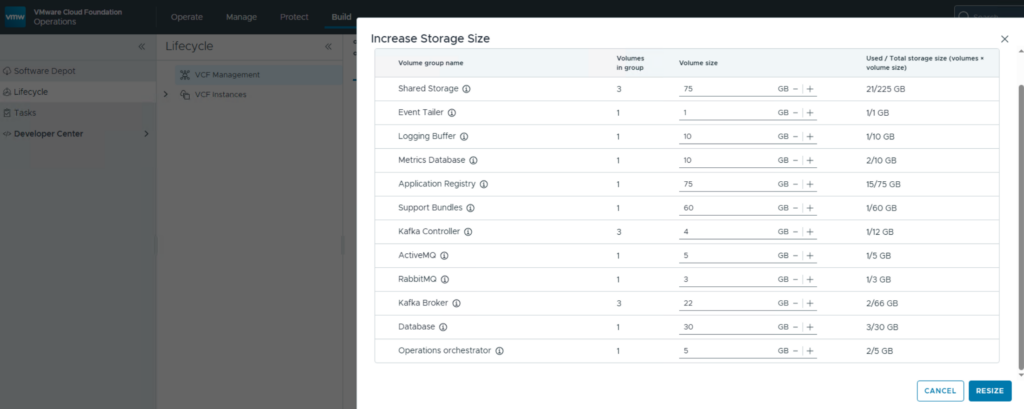
The VCF Automation appliance has a shared storage area which is used for the temporary storage of uploaded images. You can see more details in VCF Operations à Build à Lifecycle. When going into the details of VCF Automation there is an option to increase storage sizes. All different storage areas and their space consumptions are visible. The image upload uses the “Shared Storage” area.
Subscribe to external Content Libraries
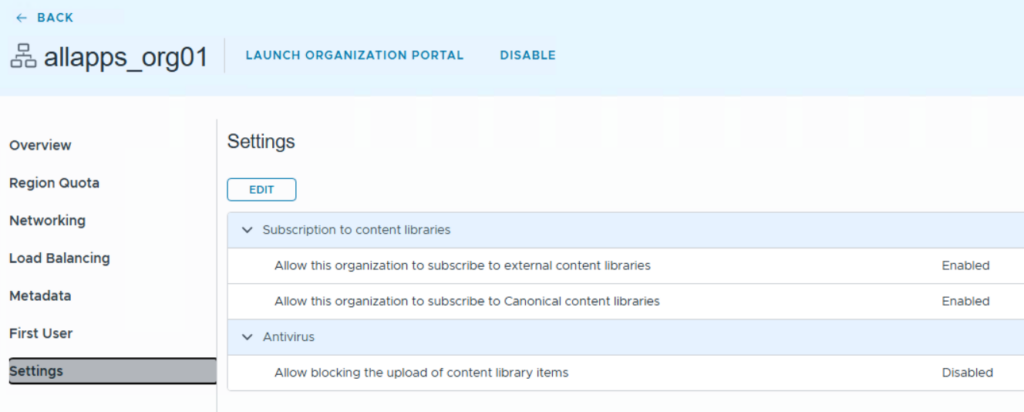
Each Content Library type in VCF Automation supports the subscription to an external library. This means you can have a manually created Content Library in vCenter and use the subscription URL to connect to it. As pre-requisite this functionality must be enabled at an Org level.
Example of a manually created Content Library (in vCenter directly):
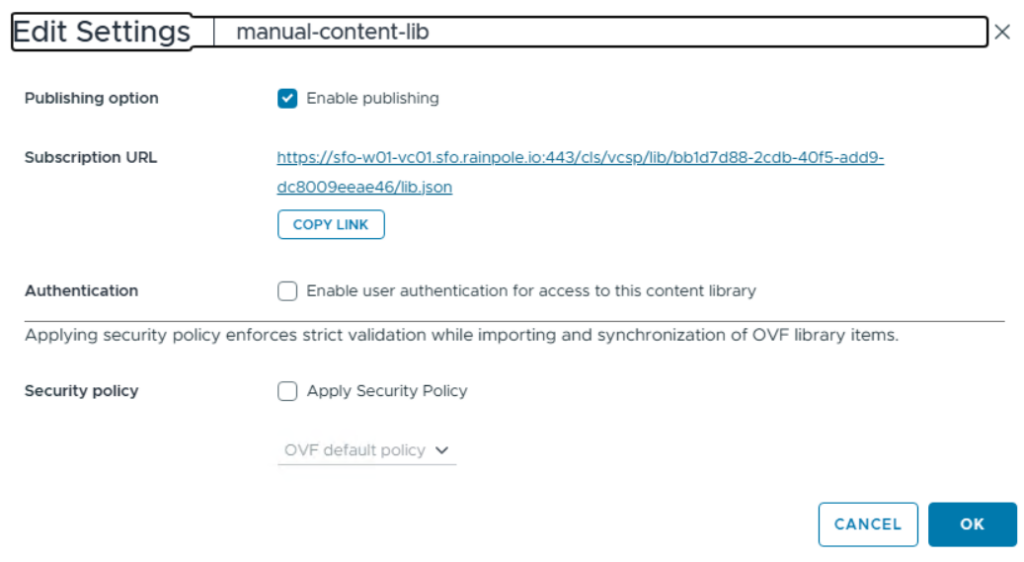
The URL of a manually created Content Library must be simply copied and pasted in the creation screen for a Content Library in VCF Automation after the “Subscribe to an external library” switch has been enabled.
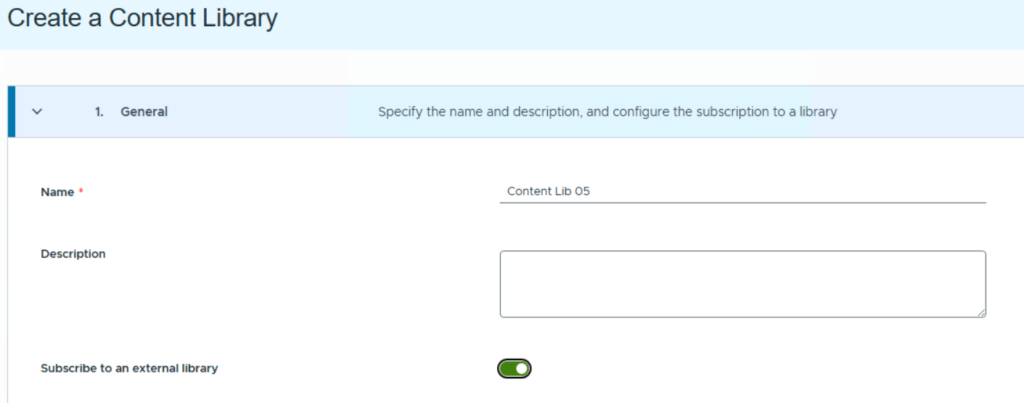
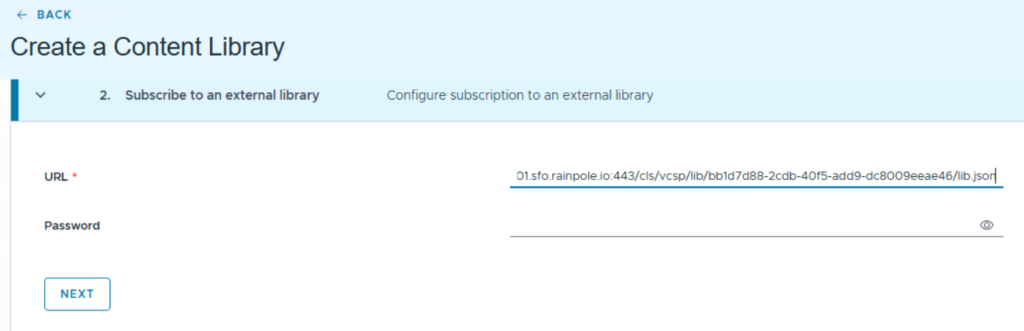
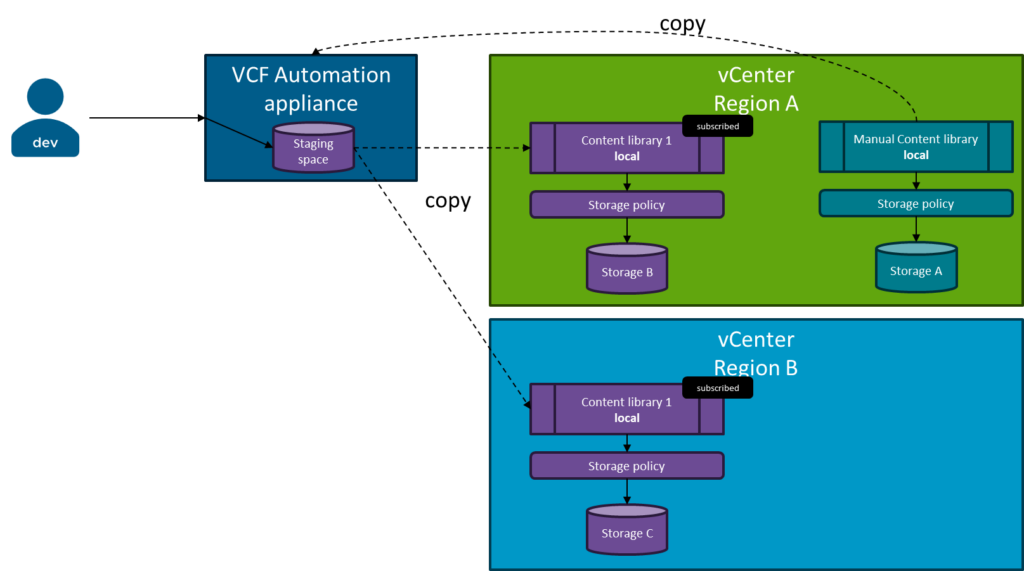
As a result, VCF Automation will create Content Libraries of type “Local” (Provider/Organization) in each configured region / vCenter. Once an image is uploaded in the manual Content Library, VCF Automation detects this change and will copy the new image to its internal staging area. From that the data transfer to the in-region content libraries is started.
Canonical Content Libraries
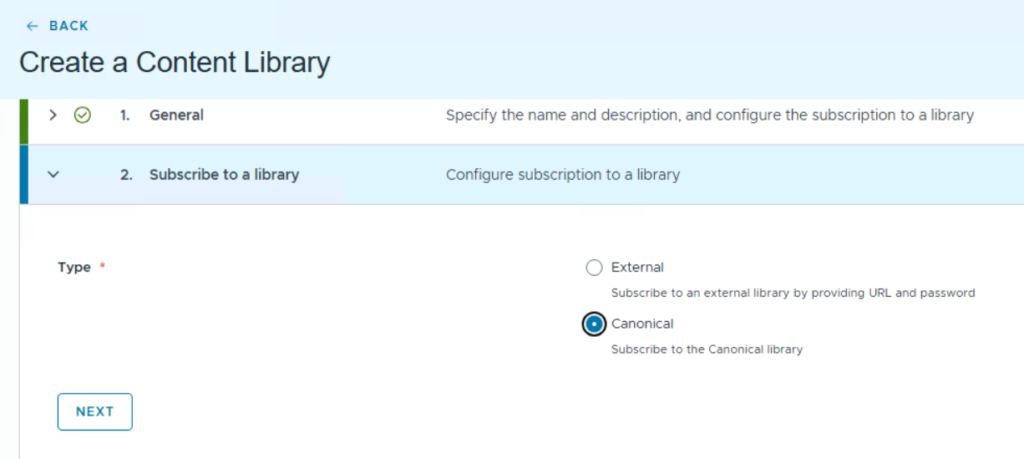
The Canonical Content Library is a special type of a subscribed Content Library. This must be explicitly enabled on the organization level and can only be used for Organization and Project Content Libraries.
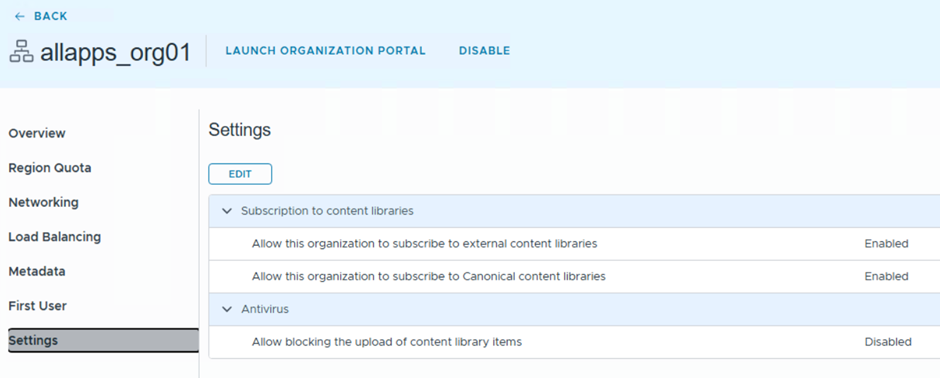
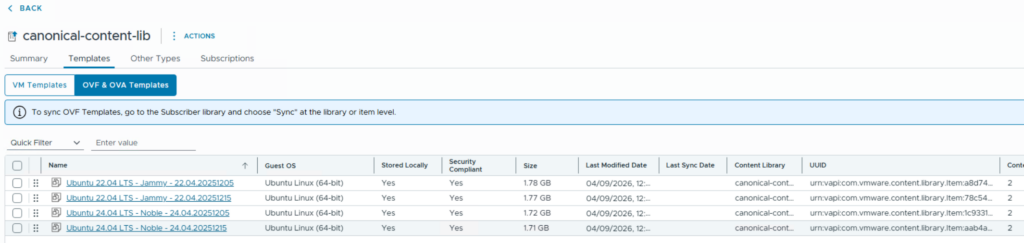
This capability has been introduced in VCF Automation 9.1 and derives from the new partnership between VMware and Canonical. VMware provides special prepared and certified Ubuntu images in a central Content Library which automatically can be synced to customer environments. Once this type of Content Library is configured, the images are automatically transferred to the Content Library in the customer datacenter. The images are retrieved through the depot configuration on the VCF installation. If you are using an offline depot, a specific procedure might be required which I don’t cover in this blog post.
The Canonical Content Library is created as a normal Organization or Project Content Library.
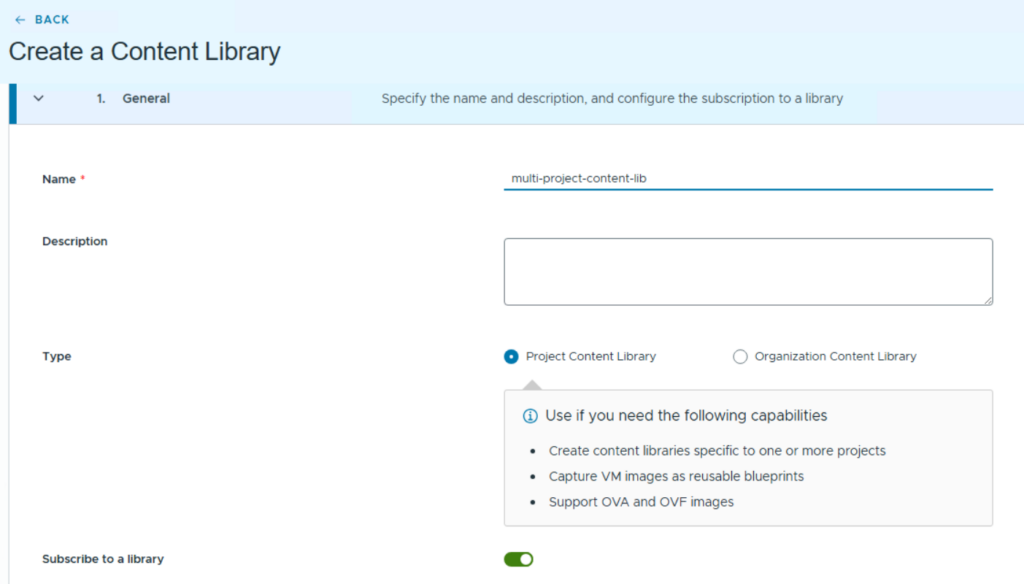
When “Subscribe to a library” is enabled, you will be provided with the option to use a Canonical subscription.
As of today, the result is that 2 Ubuntu 22.04 and 2 Ubuntu 24.04 images with different time stamps are synced.

- VCF Automation 9 – Present Kubernetes labels as dropdown - 18. August 2026
- VCF 9 – Automated Offline Depot Server Creation - 19. May 2026
- VCF Automation 9 – Content Libraries - 18. May 2026
Pingback: Content Sources and Content Sharing in VCF Automation: Feeding the Catalog (VCF Automation 9 Series, Part 41) – Dr. Pranay Jha