


A while ago I created a blog about creating a customer resource using Aria Orchestrator dynamic types. The example taken was a simple link management solution which leverages the Orchestrator configuration items. In this blog I will use the same example but in a different way. VCF Automation 9 has introduced a “new schema” type for custom resources which eliminates the need for dynamic types on the Orchestrator. This makes the creation of custom resources much easier and eliminates the need for deeper dynamic types knowledge. Please note that this schema type is only available in the All-Apps-Org.
Link Management using Orchestrator configuration items
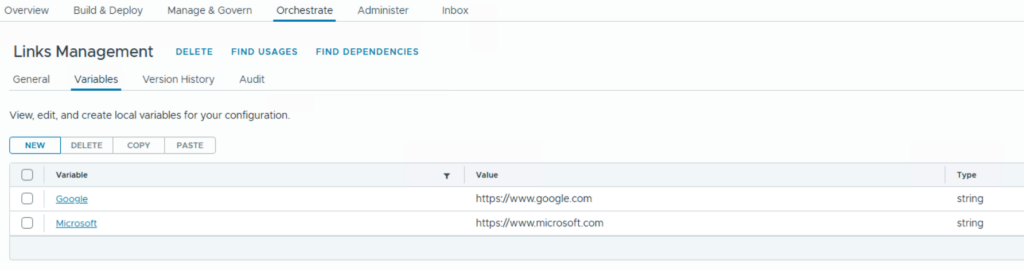
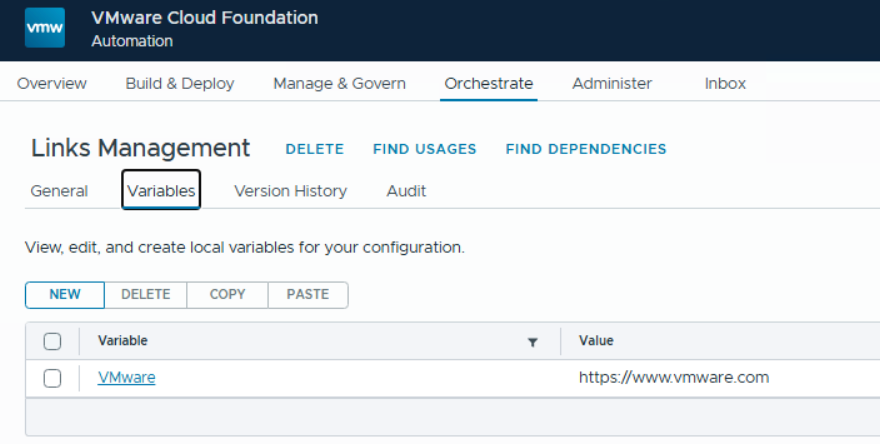
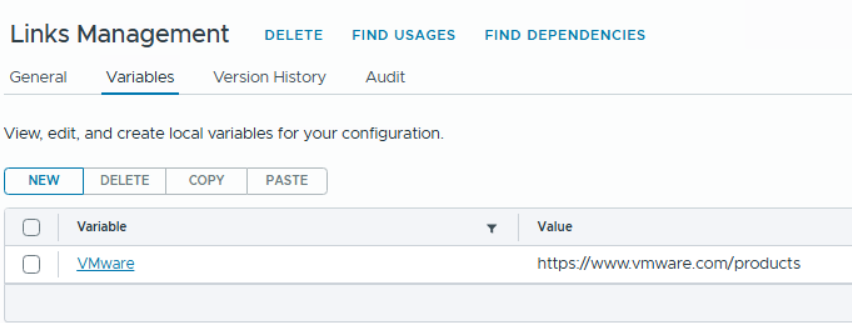
This example is just for demonstration purposes but shows in an easy manner how custom resources can be used to approach an external API. It simply manages variables in an Orchestrator configuration item. With the respective workflows you can create, delete and change entries. The entries themselves are simple variables with a name (link name) and value (link URL), see the example here:
Importing the workflow package
The workflows are pre-built and can be downloaded by this package. Just import them into your Orchestrator and you will find below structure:

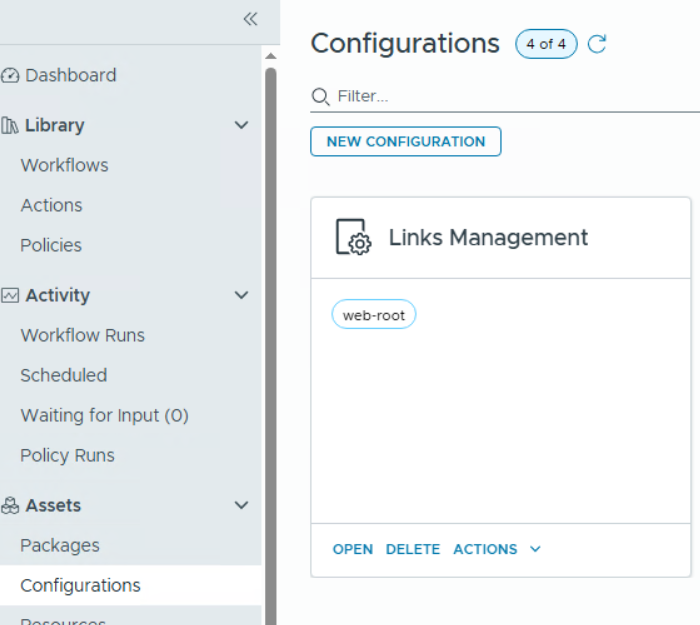
After importing the package, you need to create a configuration called “Links Management” (name could be tailored in the workflow variables if needed) in the Orchestrator configurations menu.
Creating a custom resource
A custom resource is required to deploy an external resource by a workflow. After the request has been issued, the object will be shown as deployment in VCF Automation and day-2 actions (if available) can be performed.
To create a custom resource, go to “Build & Deploy > Blueprint Design > Custom Resources”

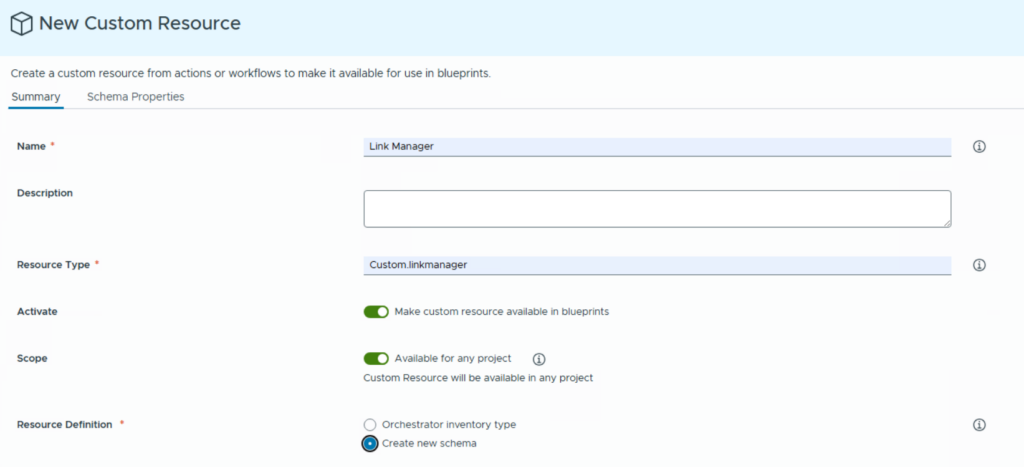
Create a new custom resource and specify the following parameters for it:
- Name: This is how the resource shows up in the blueprint designer.
- Resource Type: This is the internal resource name for the blueprint designer starting with custom.
- Enable “Make custom resource available in blueprints” for later blueprint consumption
- Select “Create new schema”
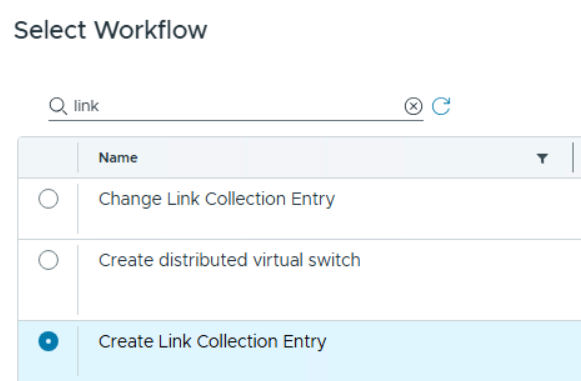
In the next steps the workflows for create, read and destroy must be added. Compared to dynamic types there is a “read” workflow additionally in the new schema. The new schema does not have an automated external process that updates data of the resource as Orchestrator had with dynamic types. Therefore a read workflow is required that executes this job.
Add the “Create Link Collection Entry” workflow and the others from the package accordingly.
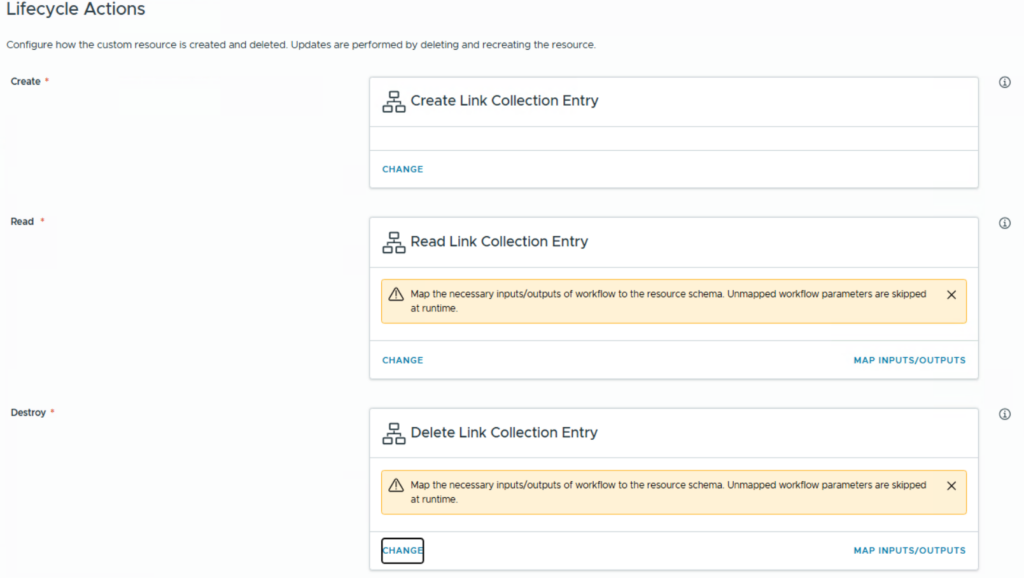
Now the inputs/outputs must be mapped for the read and destroy workflows:
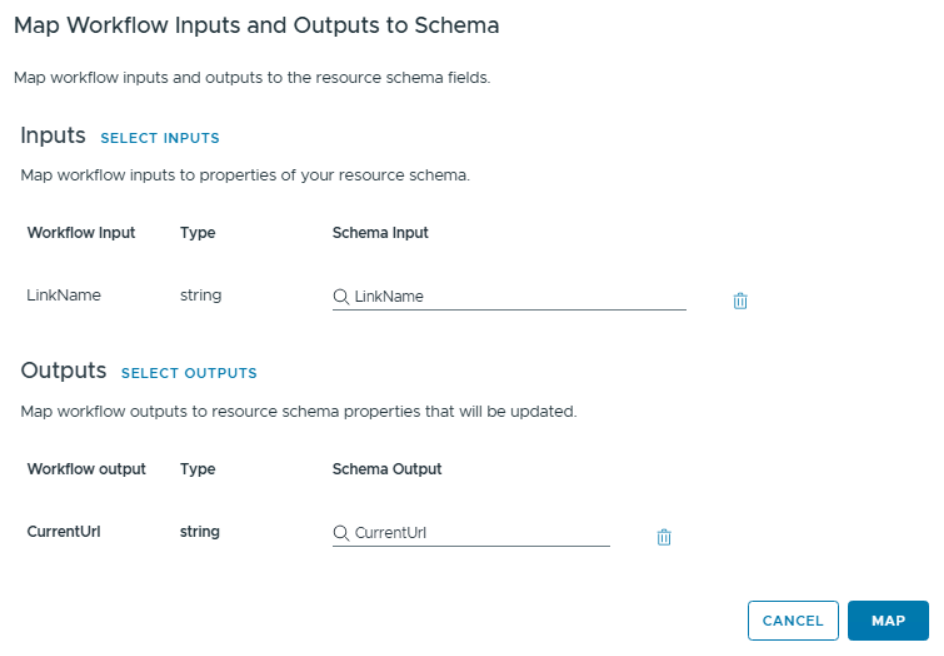
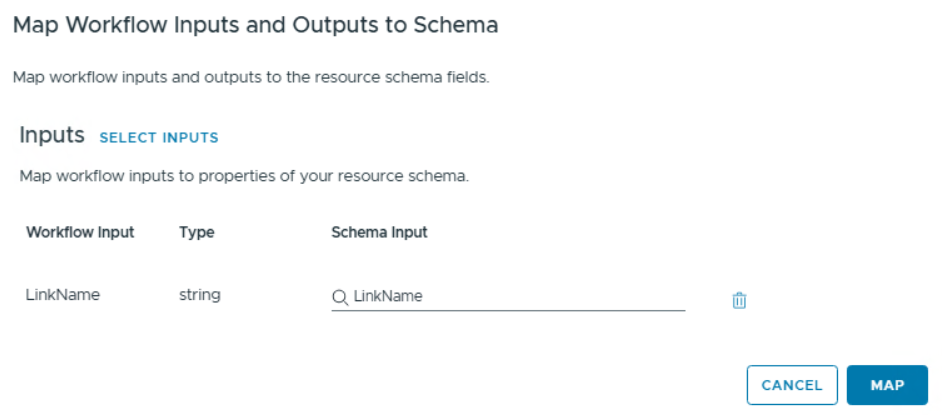
Afterwards the yellow warning boxes will disappear. Please note that when you open the custom resource later again, the boxes will come up again, but the configuration is still in place. Mapping is needed to tell the workflow the right reference for the object. E.g. the destroy workflow needs to understand which link to delete based on the link name and not based on another property that could potentially exist.
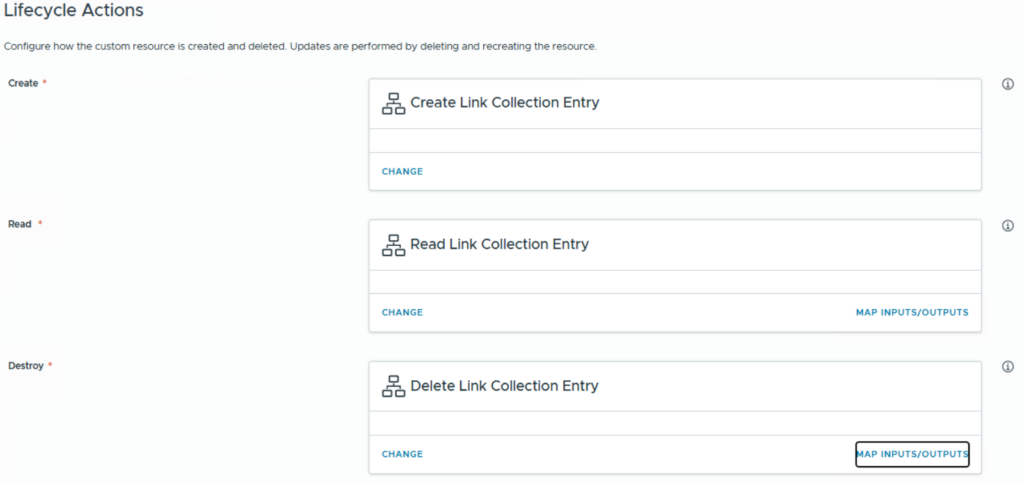
As a last step you need to add an additional action. This part is optional, however if you want to give your user capabilities to do day-2 actions on the object then this is the way to go. In our example the consumer simple has the option to change the value of a link as day-2 action.
Add the additional action and reference “Change Link Collection Entry” workflow.

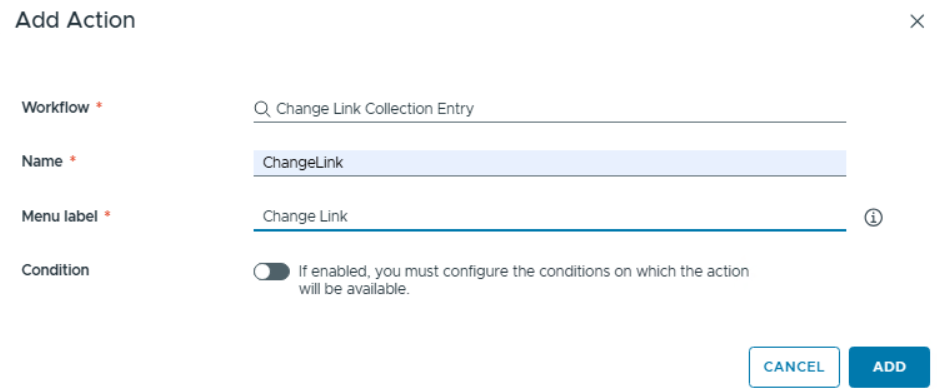
We will make the day-2 action available in all situations and hence keep the condition disabled.
Finally create the custom resource.

Create a Blueprint
Once the custom resource is created you will see it in the blueprint designer as component. You can simply drag and drop it to the Canvas and modify the yaml code as per below example. With this yaml specification we just add some inputs to ask for the link name and link URL.
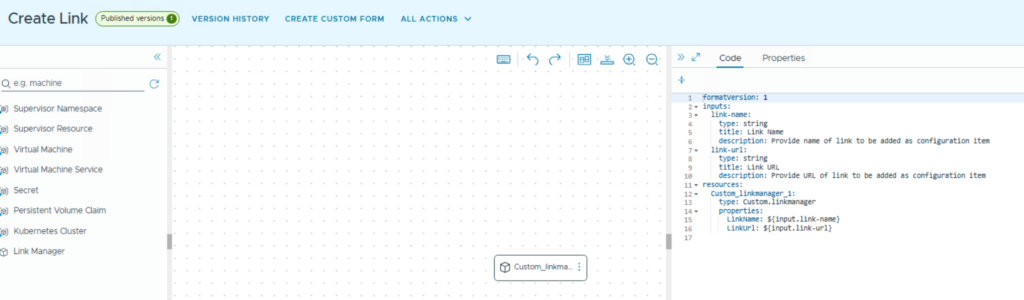
formatVersion: 1
inputs:
  link-name:
    type: string
    title: Link Name
    description: Provide name of link to be added as configuration item
  link-url:
    type: string
    title: Link URL
    description: Provide URL of link to be added as configuration item
resources:
  Custom_linkmanager_1:
    type: Custom.linkmanager
    properties:
      LinkName: ${input.link-name}
      LinkUrl: ${input.link-url}
Testing the configuration
When deploying the new blueprint, it will ask you for the Link Name and Link URL.
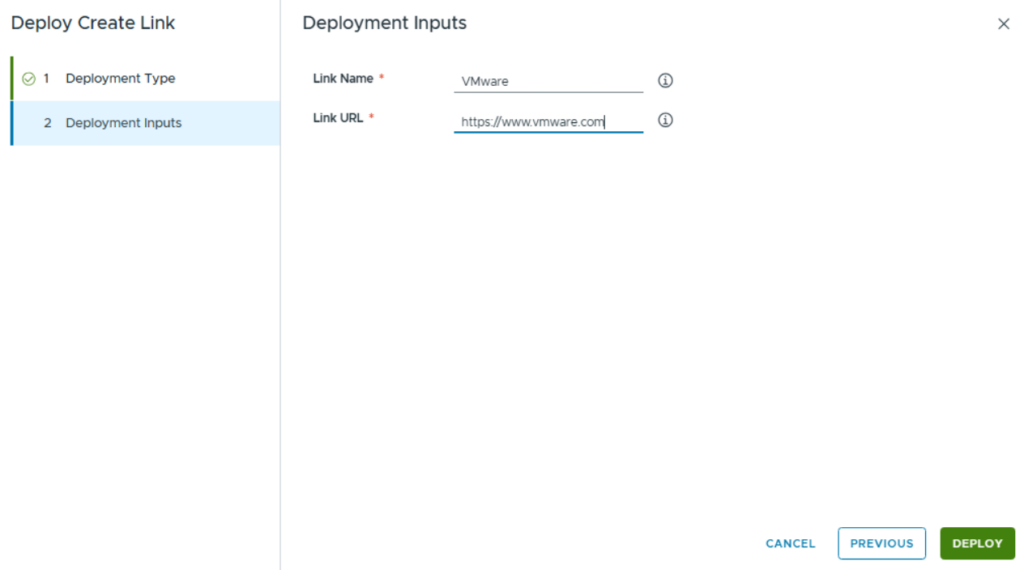
After the deployment has finished, a new deployment object shows up under catalog instances.

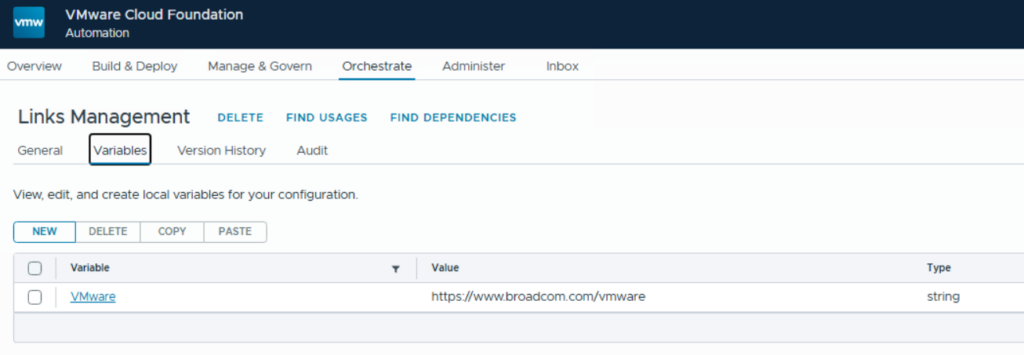
At the same time, you will see a new variable in the Orchestrator configuration “Links Management”.
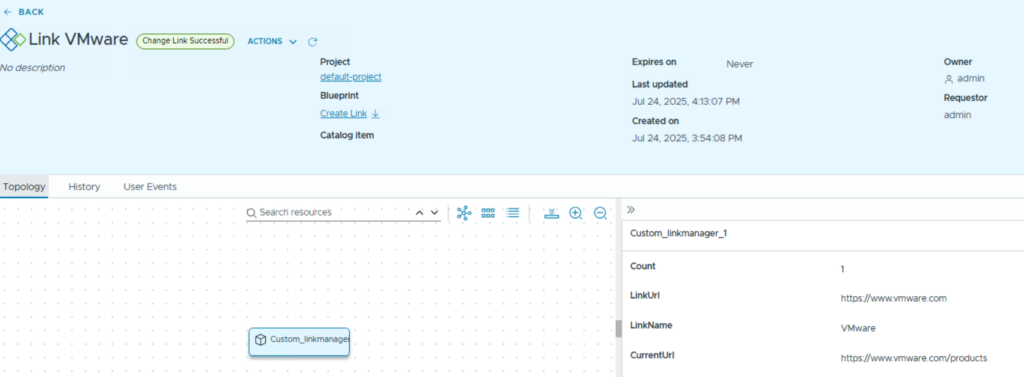
If you open the deployment in VCF Automation you will see the properties of the resource.
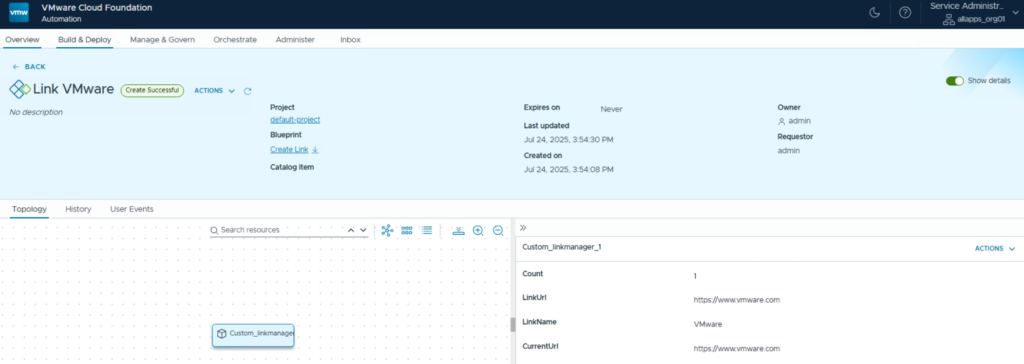
Under actions you will find the day-2 action we defined before “Change Link”.

You can now change the Link to a different value. Unfortunately, you must specify the Link Name as well as we did not implement a logic that detects the object. This could be achieved by modifying the request form (under the custom resource definition) and adding an action which retrieves the object reference.
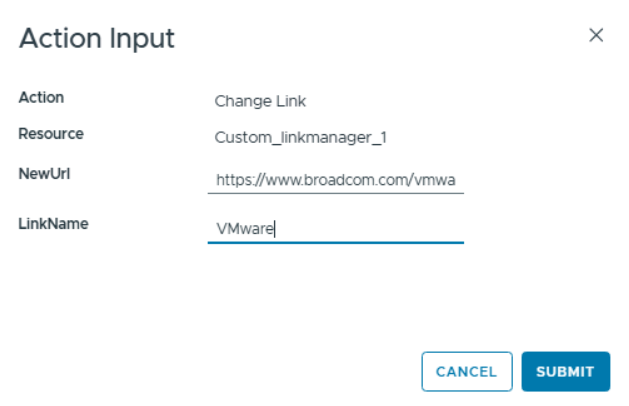
When the day-2 action has finished, the variable has been modified in the Links Management configuration item. This is done by the “Change Link Collection Entry” workflow.
The “CurrentUrl” property in the deployment has been updated as well.

To successfully test the read workflow you must change the variable in the Orchestrator configuration item manually. After that it will take a couple of minutes before the read workflow periodically executes. In my case it took 18 minutes. Once done, the “CurrentUrl” parameter will be refreshed in the deployment view.
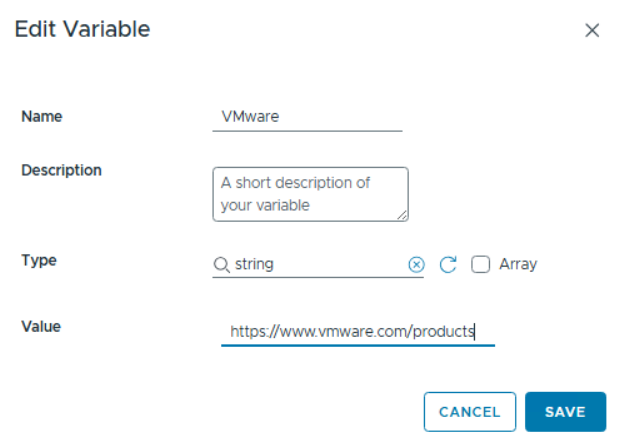
Finally, you can delete the deployment which will remove the link entry in the configuration item as well.

- VCF 9 – VKS Clusters with External-DNS - 19. February 2026
- VCF 9 – VKS Clusters with Contour - 16. February 2026
- VCF Automation 9 – Accessing VKS Clusters - 30. January 2026