


When talking about automation, Terraform is a tool which is often used at customer installations. Many customers leverage it to manage public cloud resources as it originally has been built for that. As VCF is a private cloud solution it sounds logical to add those resources as well for a Terraform configuration. While there might be Terraform providers for core components of VCF as well, the main relevant component from a consumption perspective is VCF Automation. In previous Aria Automation versions there already was a Terraform provider available to consume catalog resources and do other configuration tasks. Now with VCF 9 and VCF Automation 9 the provider architecture has been extended to match the new use cases especially when using the All-Apps-Org.
As I wrote in some other blogs already, VCF 9 Automation knows 2 tenant models: The VM-Apps-Org which is like 8.x versions of Aria Automation with primary focus on VM-based workloads + custom resources and the All-Apps-Org which is completely new and supports all workloads incl. VMs, Kubernetes and custom resources.
This blog focuses on the new Terraform provider options for the All-Apps-Org.
Terraform basics
There are a lot of documentation and community forums available which explain Terraform in detail. Due to that I will not do an in-depth assessment of this. For a simple deployment you can easily download the terraform executable, store it in a folder and execute it. Just follow the official guide to make it work. In my case I used the Windows binary and copied it into the folder where my .tf files are stored as well. You can also place your terraform.exe in a folder which is path-searchable or you add your folder to the path variable.
After that you only need to put .tf files with the correct content into that folder. Their naming is actually not relevant, however usually you name them according to their role. Terraform will pick up all files in the current folder and merge them appropriately.
A typical structure can look like this:
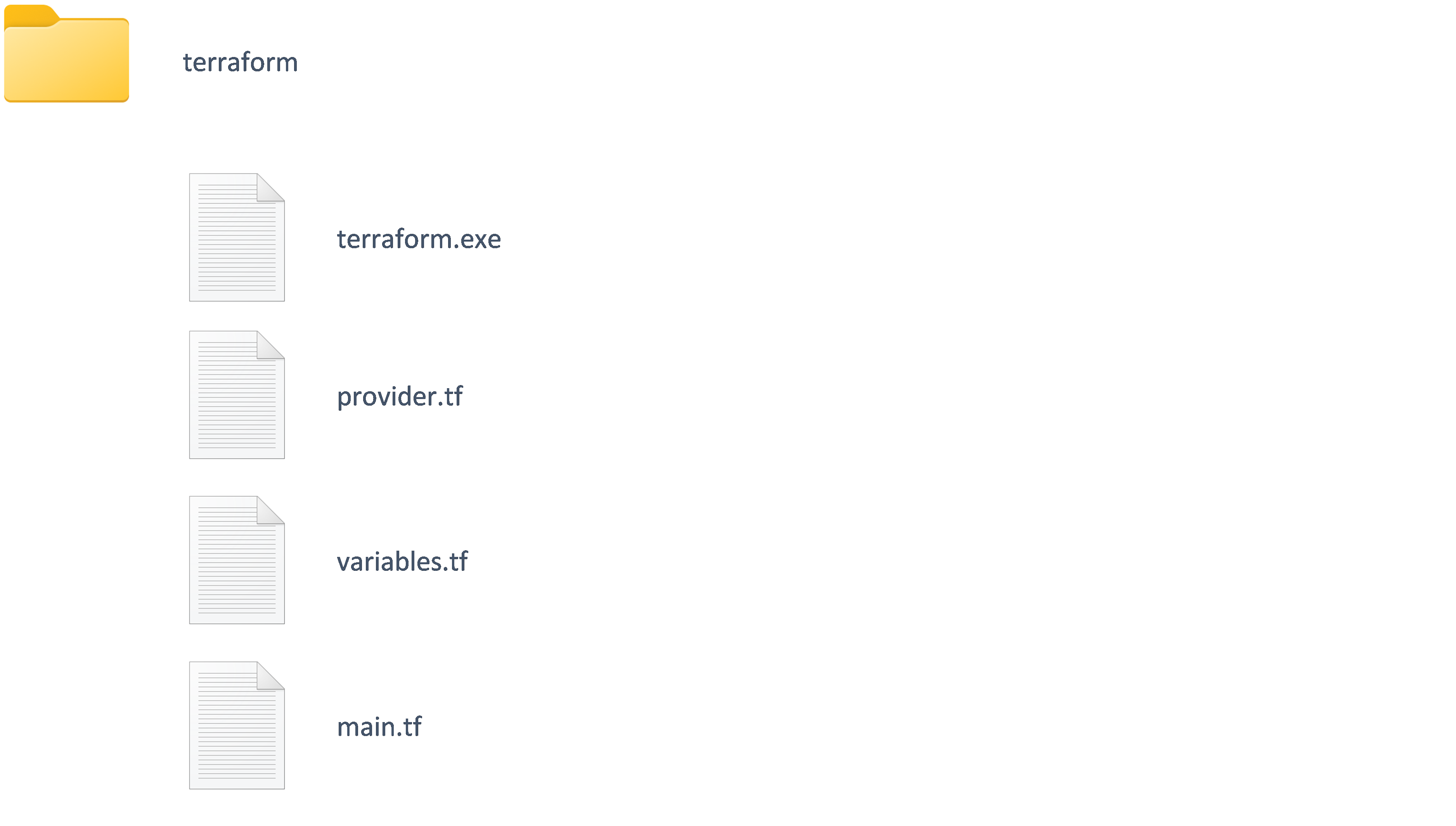
The provider.tf file is used to host the provider specifications. It includes the code to load the providers required for the resource management. variables.tf contains parameters needed for resource consumption. This includes data like the URL and credentials for the VCF Automation installation. If a variable has a default value, it will be used as defined, if it doesn’t have one, the value will be requested as input during the execution. main.tf hosts the code which is doing the actual resource provisioning or modification.
Authentication with Refresh Token
One simple but effective improvement in VCF Automation 9 is the capability to get a refresh token directly from the UI rather than issuing an API call.
Simply go into the account preferences
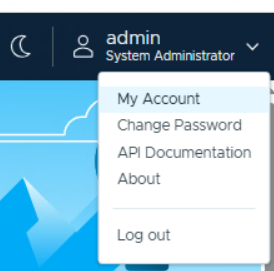
Move to API token tab –> new

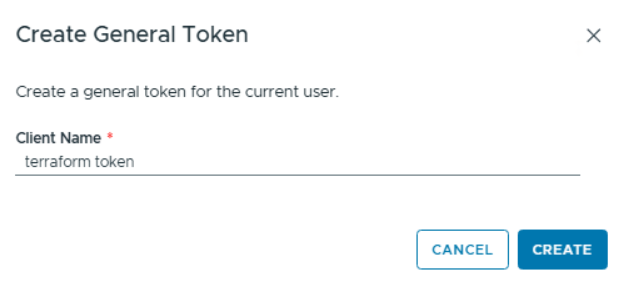
Insert a token name to remember what it was used for
Copy the token and store it in a save location as you will not be able to retrieve it from the UI again
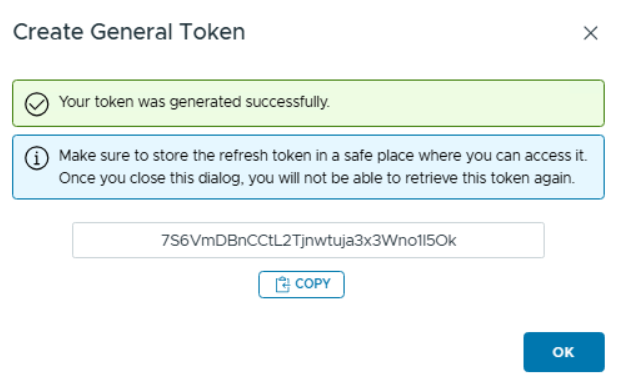
The refresh token will be required in the variables.tf file going forward.
VCF Automation 9 Terraform Providers
All good things come in threes! VCF Automation 9 leverages 3 different terraform providers which all have their areas of focus.
In a nutshell: The existing vra provider is used for the catalog in general and VM-Apps-Org, the new vcfa provider is used for the provider management, for resources in the All-Apps-Org the native kubernetes provider is leveraged.
| Name | Terraform Provider for Aria Automation |
| Use Case |
For VM-Apps-Org For All-Apps- Org (catalog, blueprints) |
| Short Name | vra provider |
| Link | https://registry.terraform.io/providers/vmware/vra/latest/docs |
| Provider Source | source vmware/vra |
| Name | Terraform Provider for VMware Cloud Foundation Automation |
| Use Case |
For All-Apps-Org (provider management, org, region, region quota, networking, content library) |
| Short Name | vcfa provider |
| Link | https://registry.terraform.io/providers/vmware/vcfa/latest/docs |
| Provider Source | source vmware/vcfa |
| Name | Terraform Provider for Kubernetes |
| Use Case |
For All-Apps-Org (services, projects, content library, VPC, subnets, provisioning) |
| Short Name | kubernetes provider |
| Link | https://registry.terraform.io/providers/hashicorp/kubernetes/latest/docs |
| Provider Source | source hashicorp/kubernetes |
I would recommend enabling all 3 providers (putting them in provider.tf as per below example) as they can hand over credentials.
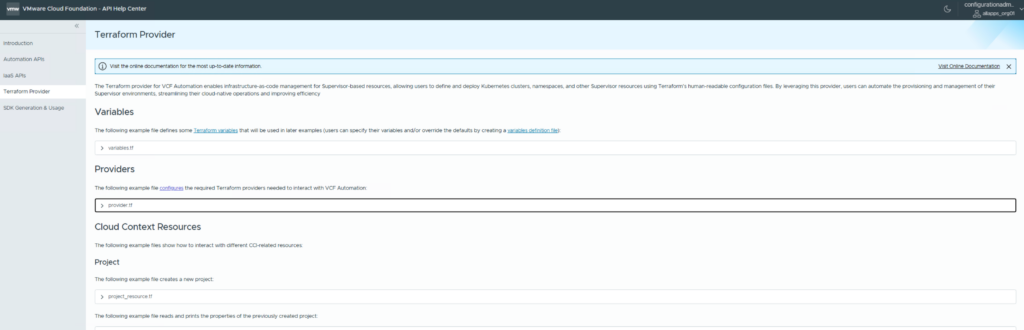
There is in-product documentation about the terraform providers and example files which can be found in the API Help Center.
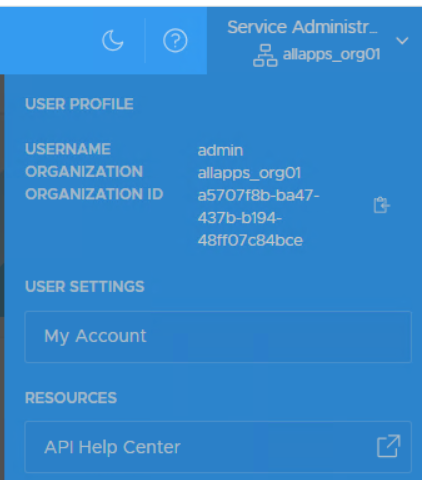
It refers to this URL:
https://<automation FQDN>/automation/api-docs/#/terraform-providerPlease note that the API docs are context sensitive and will provide different information depending on which org you are logged on.
For the All-Apps-Org you will find example .tf files.
Terraform base files
provider.tf
The provider.tf is supposed to just have the base configuration of the required providers. It refers to variables stored in the variables.tf file so that the provider.tf can be rather static. I also would recommend using it 1:1 from the examples in the in-product documentation. It’s built to support all 3 providers and it also leverages the input credentials to authenticate against all 3 providers.
//// provider.tf
terraform {
  required_providers {
    kubernetes = {
      source = "hashicorp/kubernetes"
    }
    vcfa = {
      source = "vmware/vcfa"
    }
    vra = {
      source = "vmware/vra"
    }
  }
}
provider "vcfa" {
  url                  = "https://${var.vcfa_url}"
  allow_unverified_ssl = var.vcfa_insecure
  org                  = var.vcfa_organization
  auth_type            = "api_token"
  api_token            = var.vcfa_refresh_token
}
data "vcfa_kubeconfig" "kubeconfig" {}
provider "kubernetes" {
  host     = data.vcfa_kubeconfig.kubeconfig.host
  insecure = data.vcfa_kubeconfig.kubeconfig.insecure_skip_tls_verify
  token    = data.vcfa_kubeconfig.kubeconfig.token
}
provider "vra" {
  url           = "https://${var.vcfa_url}"
  organization  = var.vcfa_organization
  refresh_token = var.vcfa_refresh_token
  insecure      = var.vcfa_insecure
variables.tf
The variables.tf hosts all the environment-specific parameters required for a successful execution. These are the URL for the Automation host, credentials etc. You can copy the file content to your environment and customize it as needed.
//// variables.tf
// VCF Automation environment variables
variable "vcfa_url" {
  type        = string
  description = "The VCF Automation URL"
  default     = "flt-auto01.rainpole.io"
}
variable "vcfa_insecure" {
  type        = bool
  description = "Whether to validate the VCF Automation TLS certificates"
  default     = "true"
}
// Tenant variables
variable "vcfa_organization" {
  type        = string
  description = "The VCF Automation organization"
  default     = "allapps_org01"
}
variable "vcfa_refresh_token" {
  type        = string
  description = "The VCF Automation refresh token"
  sensitive   = true
Simple Terraform Use Cases
The idea of these use cases is to provide simple examples that help you understand how the implementation works. To begin with, select one of the examples and implement it. As the different samples might require different settings in the variables.tf I’d suggest to not combine them until you have understood the dependencies. Note that all the examples rely on the provider.tf and variables.tf files from the previous section.
Create an Organization
This first use case leverages the vcfa provider. It creates an organization on the provider management portal. As mentioned in the table above, the vcfa provider creates orgs, regions and other over-arching objects, but also manages objects like content libraries which can be specific to an All-Apps-Org.
As the creation of an org is on the provider management level, you must specify the tenant “system” in the variables.tf file. Also make sure you use a refresh token from an admin user on the provider level.
//// main.tf
// Project inputs
variable "org_name" {
  type        = string
  description = "Short Name of the Organization (no spaces)"
}
variable "org_displayname" {
  type        = string
  description = "Name of the Organization (shown in UI)"
}
variable "org_description" {
  type 	      = string
  description = "Description of the Organization"
  default     = "Created by Terraform"
}
// Main actions
resource "vcfa_org" "created-org" {
  name	       = var.org_name
  display_name = var.org_displayname
  description  = var.org_description
  is_enabled   = true
Create a project
This example shows how to create a project leveraging the kubernetes provider. It executes within an All-Apps-Org which means that the org name needs to be specified in the variables.tf file. From a permissions perspective you can use an org admin user (refresh_token) as a first test.
One special thing about this example is that there is another variable in the main.tf which specifies the project name. As no default is given, it will ask during the terraform execution for this input. You could put that code in the variables.tf file as well, but this would mean it’s not generic anymore and will ask at all executions for a project name – even if it is not needed.
//// main.tf
// Project inputs
variable "project_name" {
  type        = string
  description = "The name of the project to create"
}
// Main actions
resource "kubernetes_manifest" "project" {
  manifest = {
    "apiVersion" = "project.cci.vmware.com/v1alpha2"
    "kind"       = "Project"
    "metadata" = {
      "name" = var.project_name
    }
    "spec" = {
      "description" = "Project [${var.project_name}] created by Terraform"
    }
  }
}
Create a Blueprint
With this terraform specification you can create a new blueprint as you would do in the graphical design canvas. It leverages the vra provider for this purpose. Again, you must specify the tenant name in the variables.tf and use a refresh_token from an org admin user in the respective org.
Also, here we are using the project name where the blueprint should be created in as an input variable. The example itself was taken from the official in-product documentation. If you’d request the blueprint in VCF Automation afterwards, it will ask for all different input parameters specified in the blueprint yaml.
//// main.tf
// Project variables
variable "project_name" {
  type        = string
  description = "Name of the project to create a blueprint"
}
// Get Project Object
data "kubernetes_resource" "project" {
  api_version = "project.cci.vmware.com/v1alpha2"
  kind        = "Project"
  metadata {
    name = var.project_name
  }
}
resource "vra_blueprint" "blueprint" {
  name              = "terraform-created-blueprint"
  description       = "Blueprint created by Terraform"
  project_id        = data.kubernetes_resource.project.object.metadata.uid
  request_scope_org = true
  content           = <<-EOT
    formatVersion: 1
    inputs:
      namespace:
        type: string
        description: Name of the Namespace to use
      imageName:
        type: string
        description: Name of the Image to use
      vmClass:
        type: string
        description: Name of the VM Class to use
      storageClass:
        type: string
        description: Name of the Storage Class to use
      namePrefix:
        type: string
        description: Prefix for the virtual machine name
    resources:
      CCI_Supervisor_Namespace:
        type: CCI.Supervisor.Namespace
        properties:
          name: $${input.namespace}
          existing: true
      Virtual_Machine:
        type: CCI.Supervisor.Resource
        properties:
          context: $${resource.CCI_Supervisor_Namespace.id}
          name: $${input.namePrefix}-$${env.shortDeploymentId}
          manifest:
            apiVersion: vmoperator.vmware.com/v1alpha3
            kind: VirtualMachine
            metadata:
              name: $${input.namePrefix}-$${env.shortDeploymentId}
            spec:
              className: $${input.vmClass}
              imageName: $${input.imageName}
              storageClass: $${input.storageClass}
              powerState: PoweredOn
  EOT
}
Provision a VM with the kubernetes provider only
The examples above make use of all 3 providers. There might however be situations where you only want to use standard providers from Hashicorp as much as possible. As VCF Automation supports the Kubernetes interface in the All-Apps-Org by default, you can simple use the kubernetes provider standalone if desired. The code below will do that task. It will provision a virtual machine based on the parameters provided in the main.tf file. As those parameters are tailored to my environment, you must customize them to fit your installation. The easiest way to do this is walking through a deployment in the UI and capturing the yaml code which has all required parameters in it.
As we are not using the vcfa provider for authentication here, it requires a working kubeconfig including the context instead. Make sure you modify the respective parameters in the provider.tf file accordingly to set the path for the kubeconfig as well as the context. For an explanation how to get the kubeconfig file refer to my other blog.
provider.tf:
//// provider.tf
terraform {
  required_providers {
    kubernetes = {
      source  = "hashicorp/kubernetes"
      version = ">= 2.11.0"
    }
  }
}
provider "kubernetes" {
  config_path = "C:/Users/cferber.MLAB/.kube/config" # Use your local kubeconfig file
  config_context = "auto01:sfo-vpc1-ns01-ybw7d:default-project"
}
main.tf:
//// main.tf
resource "kubernetes_manifest" "vm" {
  manifest = {
    apiVersion = "vmoperator.vmware.com/v1alpha3"
    kind       = "VirtualMachine"
    metadata = {
      name      = "vm-by-terraform-provider"
      namespace = "sfo-vpc1-ns01-ybw7d"
      labels = {
        "vm-selector" = "vm-7z7q"
      }
    }
    spec = {
      className     = "best-effort-small"
      imageName     = "vmi-706ee8ffc6aef3717"
      storageClass  = "sfo-w01-cl01-optimal-datastore-default-policy-raid1"
      powerState    = "PoweredOn"
    }
  }
}
Testing the Terraform configuration
If all files have been put into a folder incl. the terraform executable, it’s the right time to test it. I am using the create project example here.
First you need to run an initialization which automatically downloads all needed provider from the internet. Note: My terraform.exe is in the parent folder which is why I invoke it through ..\terraform in the screenshots.
terraform init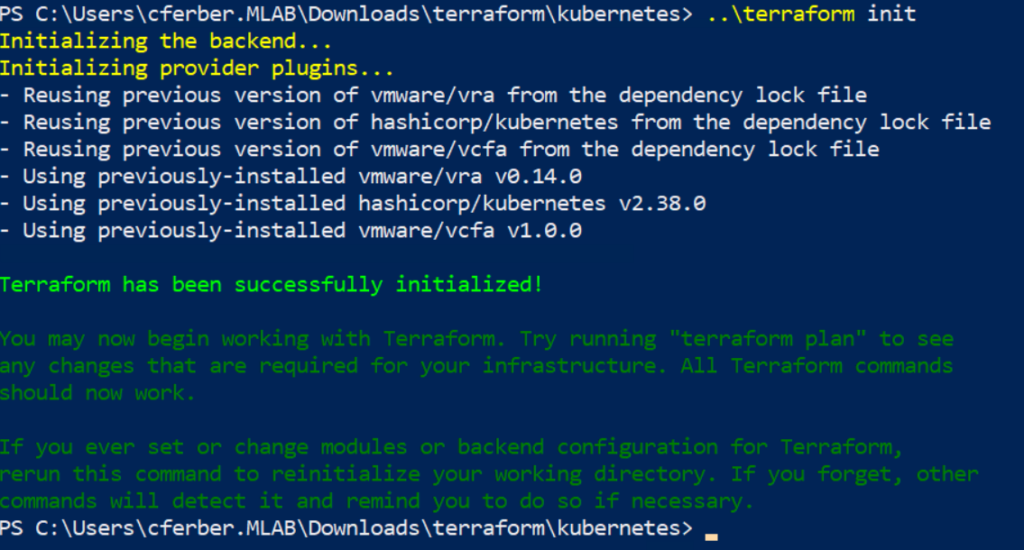
Second you run a plan that shows which changes would be made without doing anything. It will ask you for the inputs which in this case are the project name and the refresh token to use.
terraform plan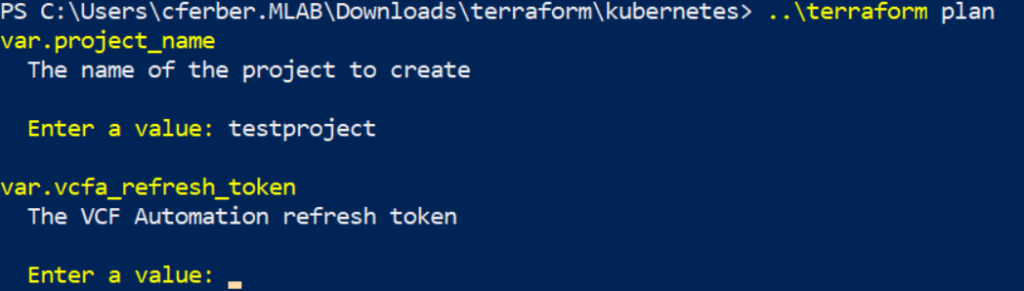
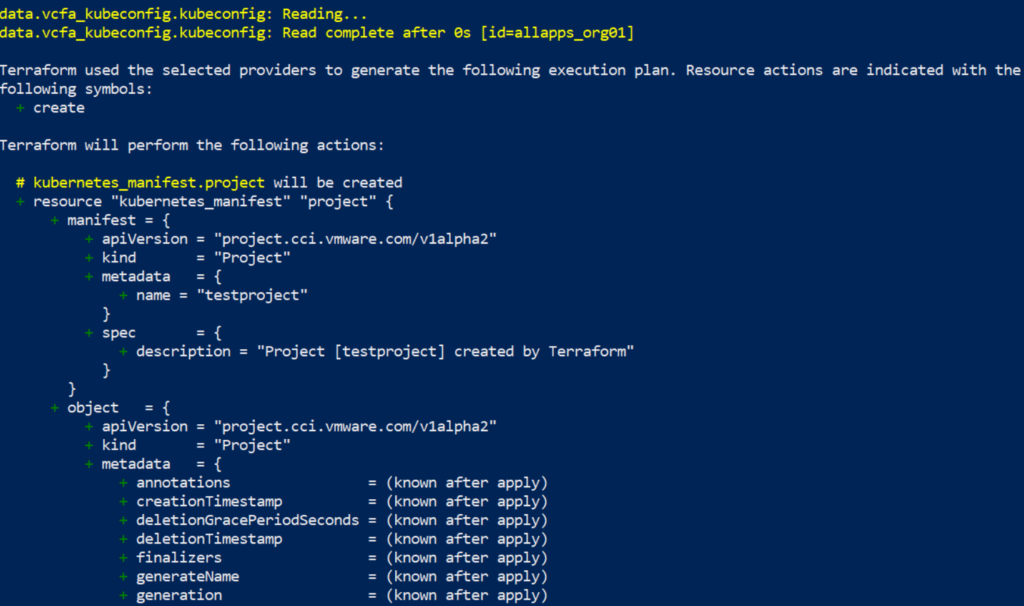

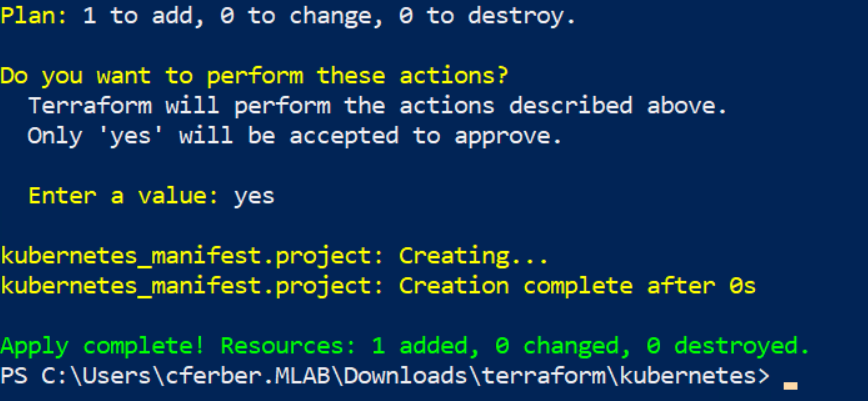
If you are satisfied with what changes will be made, just apply the configuration in a similar way as planning it.
terraform applyThe difference will be that it asks you for a final confirmation with “yes” and then executes the changes.
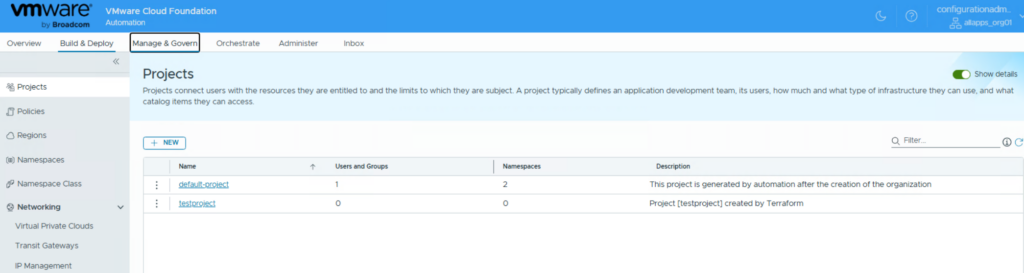
VCF Automation now shows a new project which has been created by terraform.
The change can easily be reverted by a destroy command.
terraform destroyHave fun!

- VCF 9 – VKS Clusters with External-DNS - 19. February 2026
- VCF 9 – VKS Clusters with Contour - 16. February 2026
- VCF Automation 9 – Accessing VKS Clusters - 30. January 2026
Thank you very much !!! This guide is amazing, I didn’t realize I could use vra and kubernetes providers to automate a lot more than with just using vcfa terraform provider