


Thanks to Maher AlAsfar for reviewing the article!
VCF Automation 9 has multiple levels of API access. There is the provider level where e.g. orgs can be created, the org level where projects, policies etc. are managed and the resource level. For all API calls there’s a good documentation page in the product which sometimes however does not fully explain how to get authenticated access.
This blog will focus on the authentication part for the provider and org. I’ll focus on the proper commands to get a Bearer token.
Provider API
API request using Token
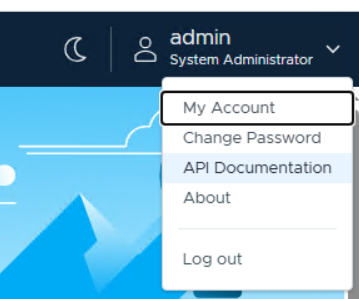
The provider API is used to manage the different tenants and their configuration. If you login as provider admin you get access to the API Documentation related to this context.
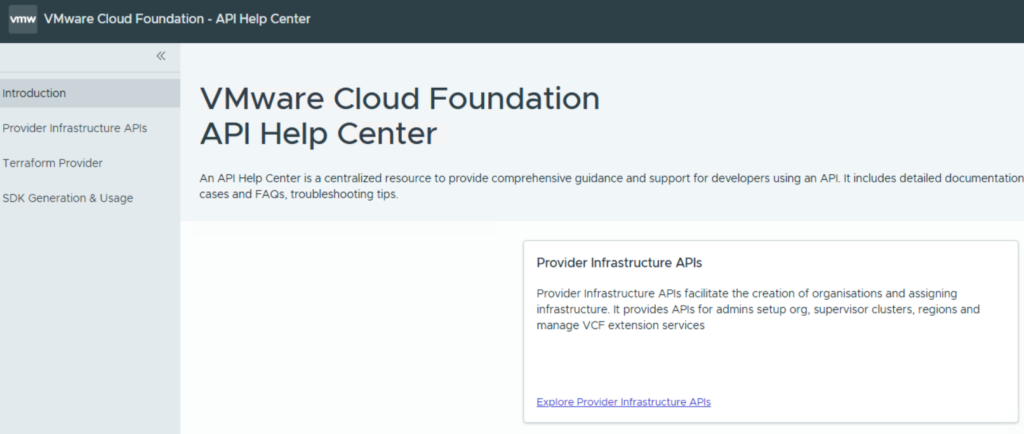
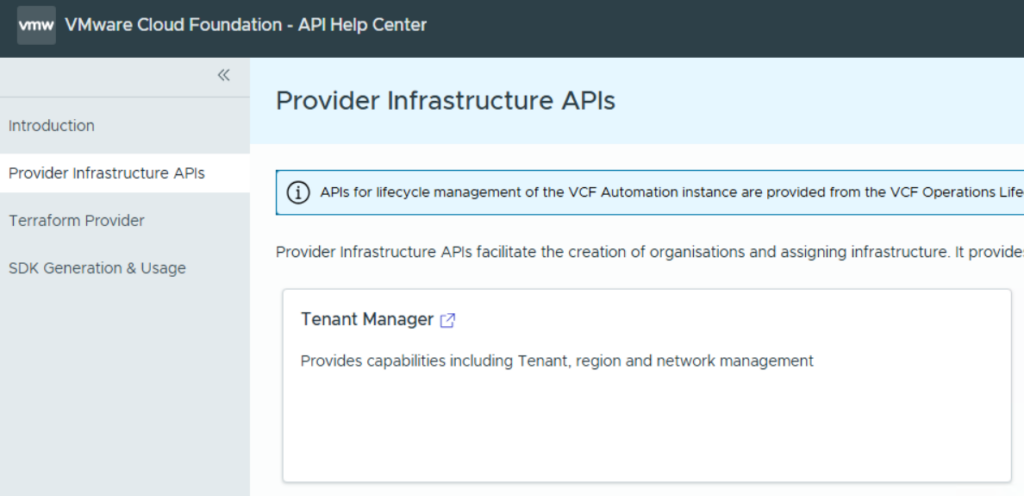
The most important APIs here are the “Provider Infrastructure APIs” and further the “Tenant Manager”.
In the Swagger interface you can directly try out API commands where no authentication is needed as Swagger is handling that in the background. This is different from previous versions where a Bearer token had to be provided manually.
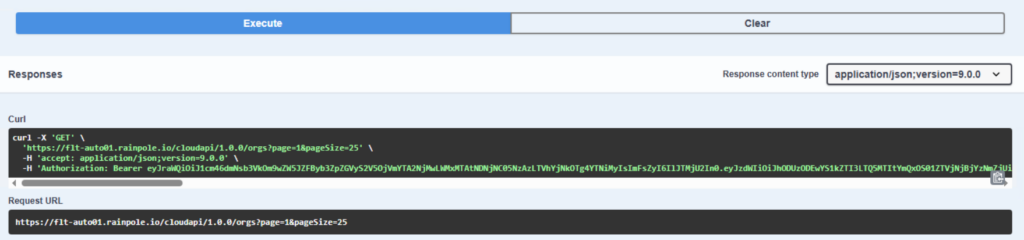
For automated script execution you might want to generate the bearer token programmatically which is not explained on the Swagger page.
For this you require following syntax:
curl -k --location 'https://<automation FQDN>/oauth/provider/token' \
--header 'Accept: application/*' \
--header 'Content-Type: application/x-www-form-urlencoded' \
--data-urlencode 'grant_type=refresh_token' \
--data-urlencode 'refresh_token=<refresh token>'
Replace the automation FQDN and refresh token place holders. For the refresh token use the UI to create it and copy it into the command.
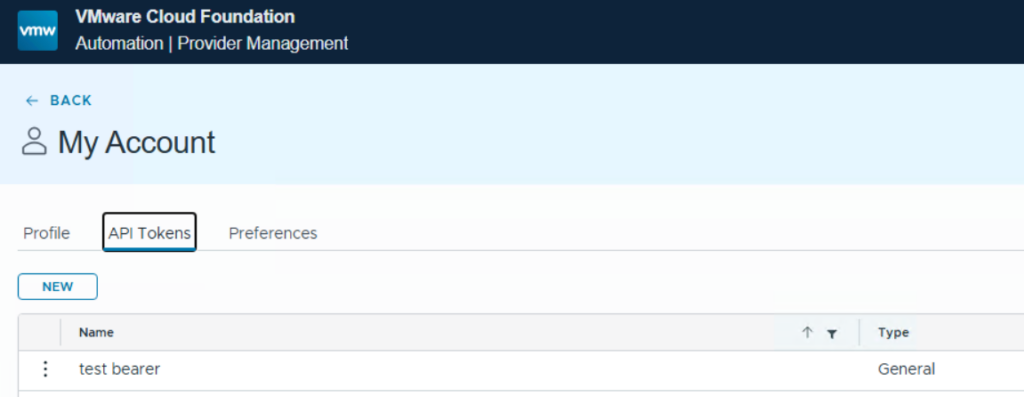
You can then literally copy the command you’d like to execute from the Swagger interface and replace the bearer token with the one you created. In my case I am listing all orgs.
curl -X 'GET' \
  'https://flt-auto01.rainpole.io/cloudapi/1.0.0/orgs?page=1&pageSize=25' \
  -H 'accept: application/json;version=9.0.0' \
  -H 'Authorization: Bearer eyJraWQiOiJ1cm46dmNsb3VkOm9wZW5JZFByb3ZpZGVyS2V5OjVmYTA2NjMwLWMxMTAtNDNjNC05NzAzLTVhYjNkOTg4YTNiMyIsImFsZyI6IlJTMjU2In0.eyJzdWIiOiIzNWY4OTdmZC0yNjk4LTQ2OWMtODgyOS0xNmVhMTY2OThiODEiLCJyb2xlcyI6WyJPcmdhbml6YXRpb24gQWRtaW5pc3RyYXRvciIsIk9yY2hlc3RyYXRvciBNYW5hZ2VyIl0sImlzcyI6Imh0dHBzOi8vZmx0LWF1dG8wMS5yYWlucG9sZS5pby9vaWRjIiwibnVtYmVyX29mX2dyb3VwcyI6MCwicHJlZmVycmVkX3VzZXJuYW1lIjoiY29uZmlndXJhdGlvbmFkbWluIiwiYXVkIjoiOTIyZjRhMTItODJjOS00NDQwLTg0NjYtZjFiMWZhY2EwNjc1IiwibmJmIjoxNzYyNDE5ODE3LCJudW1iZXJfb2Zfcm9sZXMiOjIsIm9yZ19pZCI6ImE4NjNkZDk2LTZjZjItNDgwMC05NjU5LTE4NzUyZDhjZDM4ZiIsInNjb3BlIjpbInZjZF9pZHAiLCJwaG9uZSIsIm9wZW5pZCIsInByb2ZpbGUiLCJncm91cHMiLCJlbWFpbCJdLCJvcmdfZGlzcGxheV9uYW1lIjoiYWxsYXBwc19vcmcwMSIsIm5hbWUiOiJjb25maWd1cmF0aW9uYWRtaW4iLCJzaXRlX2lkIjoiM2ZhNGI0YTAtMGIyYS00NTc0LTg1NDctY2IwYzE3MGQxNGU1IiwiZXhwIjoxNzYyNDIzNDE3LCJvcmdfbmFtZSI6ImFsbGFwcHNfb3JnMDEiLCJpYXQiOjE3NjI0MTk4MTcsImp0aSI6ImM2ZGEzNWE4LTAzYWUtNDI3Zi05NzY3LWQwMzgxNDk1MzY0MiJ9.EHZQuZP4bSbY4gOiLxrH-G5nNhDpeqGJFAWyzT8vdG0HAeogyx9CFOO026VTz3J3k7_a4NkGBRaLS_WHKkPAj0yXI4iKbF8NokpxZm6L_SVy4SPhtfMgWeMfFDltAcde7kd8XuUIIWA7NDZwpbjidnXF5kPQvMZUy3C2O4X1cB4qt9KGnei6JOyzyCCZoBi2lWASzdhAqc5_HKA1Sgp6ZXTwZOao_TTMMszReFr8xOma7CyvYS8wdF9J6rpl5dnm12jEjTNwuMjzpQcRpdOZ4PygbvQHJEHQdktzotgx3LQoV01xeWJJBW9xMLrCAg6i5DWMKAJxeD6lDie0IvHBxw'
Add “-k” if you want to disable certificate check. The response lists the available org on the platform.

API Request using username and password
For further automation you might want to use username and password to invoke API calls. This could e.g. be used to create a token programmatically.
As first step you need to create a Base64 encoded string from your username and password. There are multiple tools to achieve that. One simple method is to just use the web page https://base64encode.org
You must build a string from your credentials in this format when accessing the provider API:
<username>@system:<password>Just paste it into the UI and generate your base64encoded string from it.
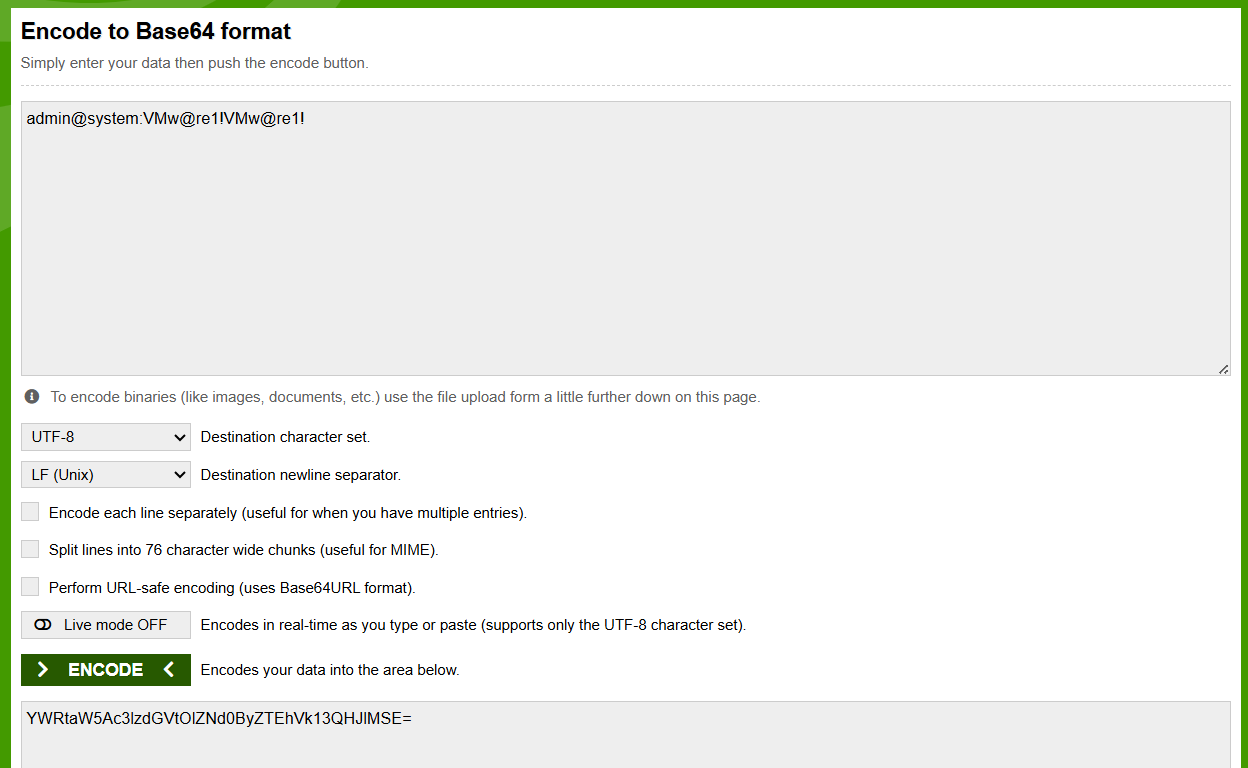
Then use the command below replacing the data in brackets:
curl -k -i --location 'https://<automaton FQDN>/cloudapi/1.0.0/sessions/provider' \
--header 'Accept: application/json;version=9.0.0' \
--header 'Content-Type: application/json;version=9.0.0' \
--header 'Authorization: Basic <base64encoded string>' \
-X POST
To automatically retrieve the base64encoded string you can use the below syntax as well. Be aware this works only on Linux by default as Windows does not contain the base64 binary out-of-the-box.
export BASIC_AUTH=$(echo -n 'admin@system:YOUR_PASSWORD' | base64)
export VCFA_FQDN=YOUR_VCFA_FQDN

curl -k -i --location "https://${VCFA_FQDN}/cloudapi/1.0.0/sessions/provider" \
--header 'Accept: application/json;version=9.0.0' \
--header 'Content-Type: application/json;version=9.0.0' \
--header "Authorization: Basic ${BASIC_AUTH}" \
-X POST
It’s important to specify the -i option as the bearer token is in the header response “x-vmware-vcloud-access-token”.
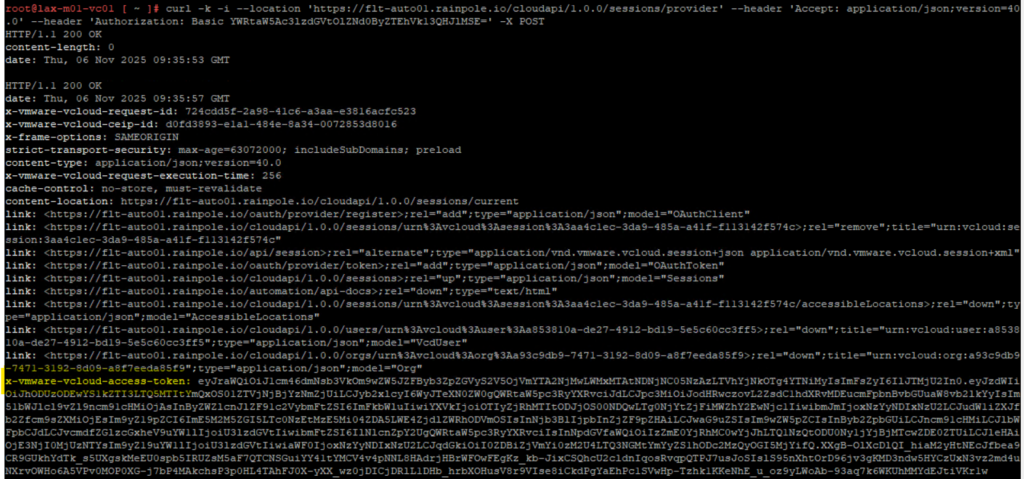
To export the bearer token into a variable directly you could use this syntax:
BEARER=$(curl -s -i -k --location 'https://<automation FQDN>/cloudapi/1.0.0/sessions/provider' \
--header 'Accept: application/json;version=9.0.0' \
--header 'Content-Type: application/json;version=9.0.0' \
--header 'Authorization: Basic <base64encoded string>' \
-X POST | awk -v 'IGNORECASE=1' '/x-vmware-vcloud-access-token:/ {print $2}' | tr -d '\r')
All-Apps-Org API
The refresh token for the All-Apps-Org is created in a similar way as for the provider org – just a different URL must be used:
https://<automation FQDN>/oauth/tentant/<org name>/token (rather than /provider in the URL).
This is also described in the official documentation.
curl -k --location 'https://<automation FQDN>/oauth/tenant/<org name>/token' \
--header 'Accept: application/*' \
--header 'Content-Type: application/x-www-form-urlencoded' \
--data-urlencode 'grant_type=refresh_token' \
--data-urlencode 'refresh_token=<refresh token>'
Use the UI (see provider section) to get the refresh token and replace automation FQDN, refresh token and org name in the request.
VM-Apps-Org API
For the VM-Apps-Org there are 2 different situations: Upgrade from a previous release and fresh installation.
If there has been an upgrade from an 8.x version, the authentication and APIs stay the same as before. I will not walk through this process as it is very well described here and the users leveraging that should be familiar with it as they have done an update and used it before.
If there is a new installation of a VM-Apps-Org, for authentication the same syntax needs to be used like for the All-Apps-Org explained above.

- VCF Automation 9 – Present Kubernetes labels as dropdown - 18. August 2026
- VCF 9 – Automated Offline Depot Server Creation - 19. May 2026
- VCF Automation 9 – Content Libraries - 18. May 2026
Pingback: VCF Automation 9 Programmatic Token Generation » vrealize.it - TechBlog VMware SDDC
Hello Christian,
thank you very much for this great post. I have two comments and one question:
1. In your example code above you use version=9.0.0, but it should be 40.0, as can be seen in your picture.
2. The link to the offical documentation of All-Apps-Org API does not work or no longer works. It would be great if you had the current one.
3. At All-Apps-Org API you write that it is necessary to use a different URL. How can I determine this? Or how does it differ from the other one?
Thanks for your effort.
Best regards
Stefan
Hi Stefan,
thanks for the feedback. See my answers here:
1. Both, 9.0.0 and 40.0 can be used while 9.0.0 is later and more appropriate.
2. I updated the link accordingly
3. I added some more explanation. In a nutshell the part of the URL differs from /provider/token to /tenant/orgname/token.
Regards,
Christian