


There are two types of organizations in VCF Automation 9. The All Apps Org and the VM Apps Org. The All Apps Org automatically configures the associated Account in Operations 9, but the Account for the VM Apps Org must be set up manually. Since we need a service account for this, I have written a small guide for this.
Create a service account:
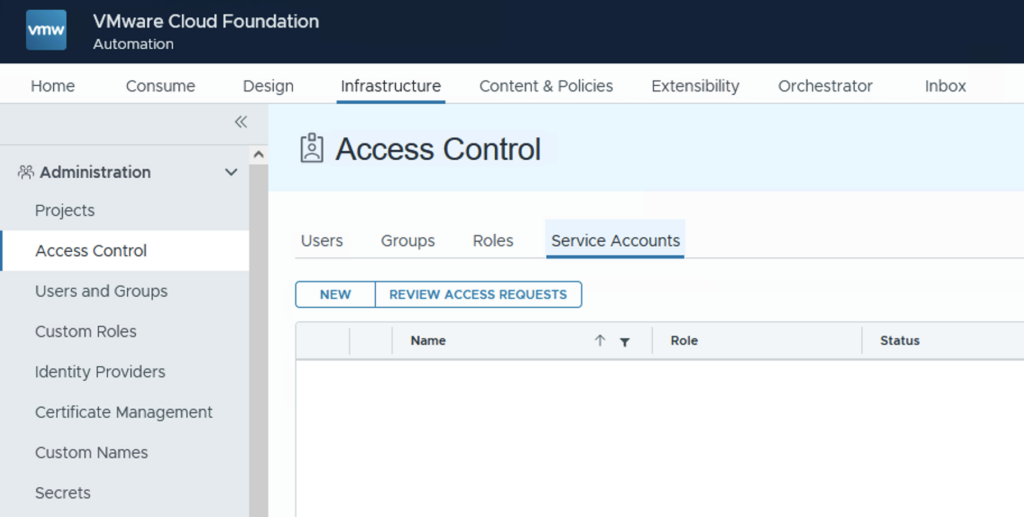
Log in to the VM App Org and navigate to Infrastructure > Access Control > Service Accounts and click New
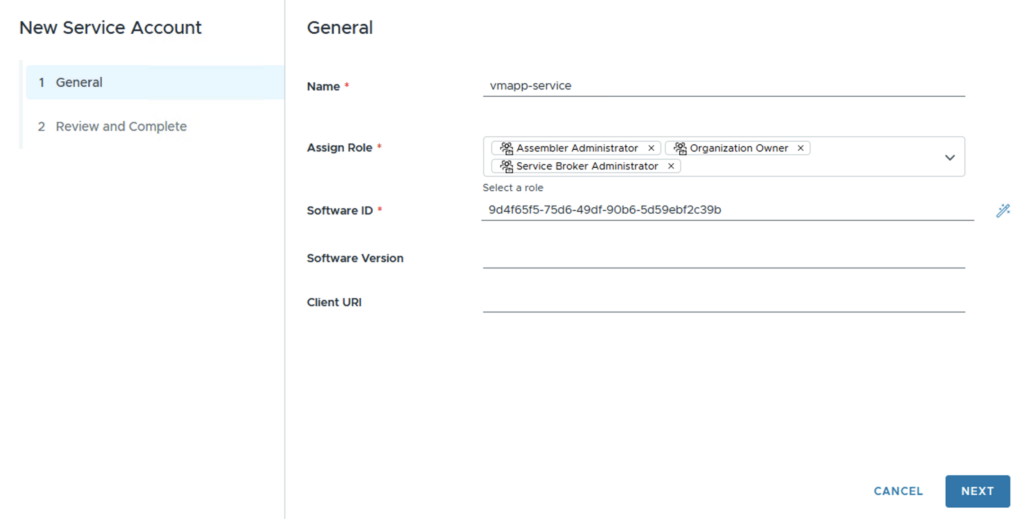
- Enter a name for the service account.
- Select the Organization Owner, Assembler Administrator, and Service Broker Administrator roles.
- Click the magic wand to generate the software ID
- Click Next
Review the configuration an click Finish

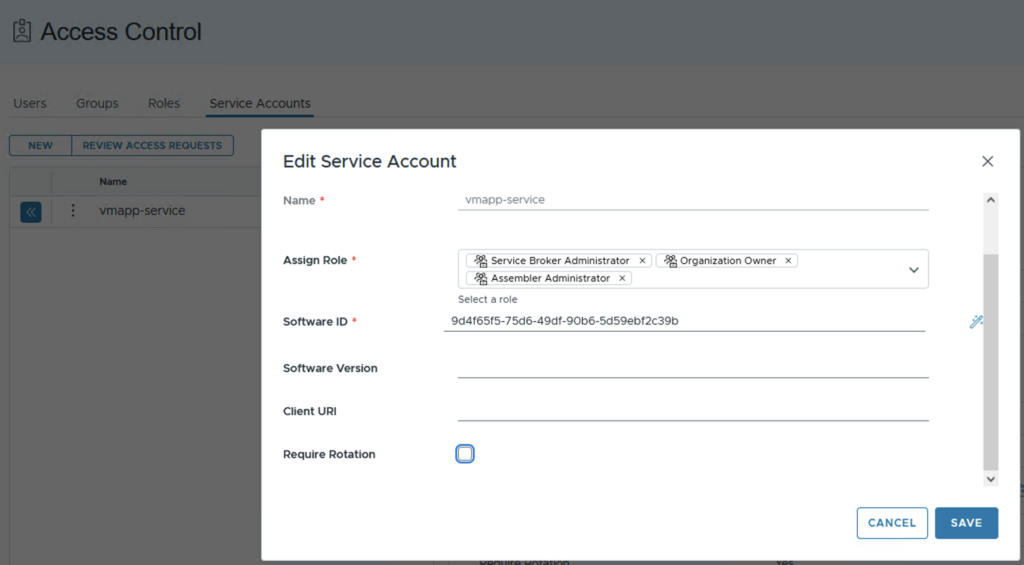
Edit the created service account and deselect the Required Rotation box and click Save
Get a refresh token:
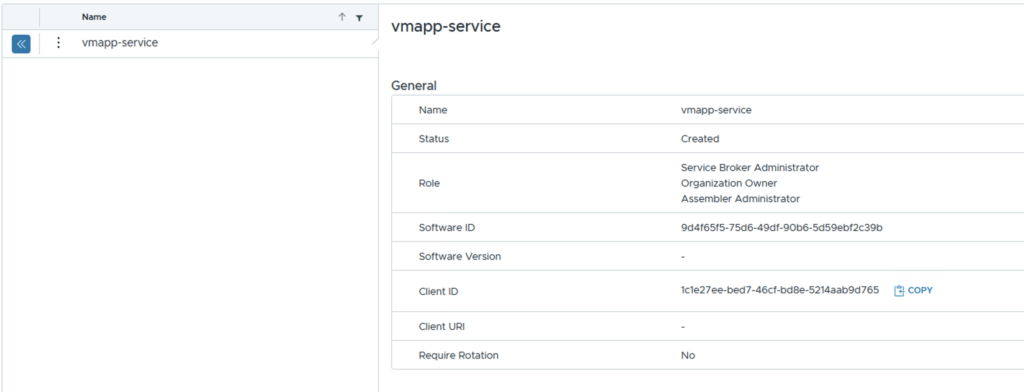
Click the double arrow next to the service account name to expand the service account row and copy the client ID
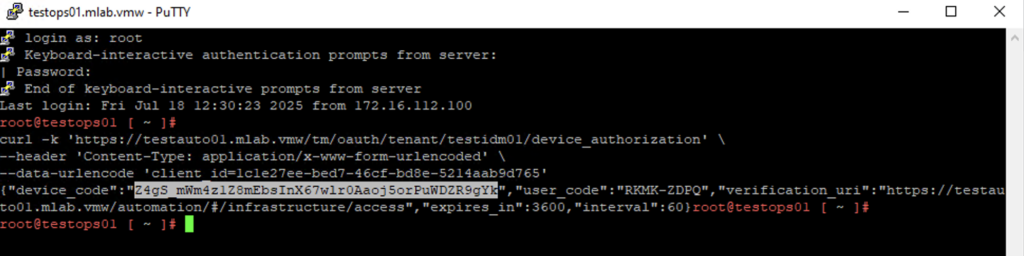
Now we need a console to run the following command with the right parameters from your environment and copy the user_code outcome (i used the Ops console):
curl -k 'https://<VCFA_PROVIDER_MANAGEMENT_PORTAL_FQDN>/tm/oauth/tenant/<VCFA_ORGANIZATION_NAME>/device_authorization' \
--header 'Content-Type: application/x-www-form-urlencoded' \
--data-urlencode 'client_id=<ORGANIZATION_SERVICE_ACCOUNT_CLIENT_ID>'
On the Service Accounts tab, click Review Access Requests and paste the user code
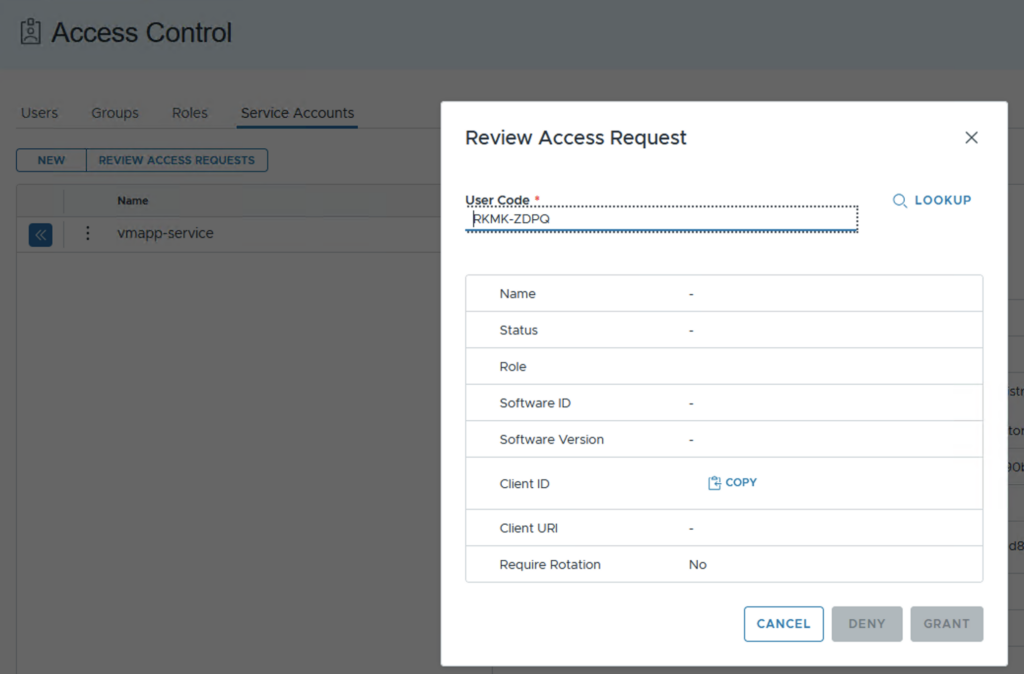
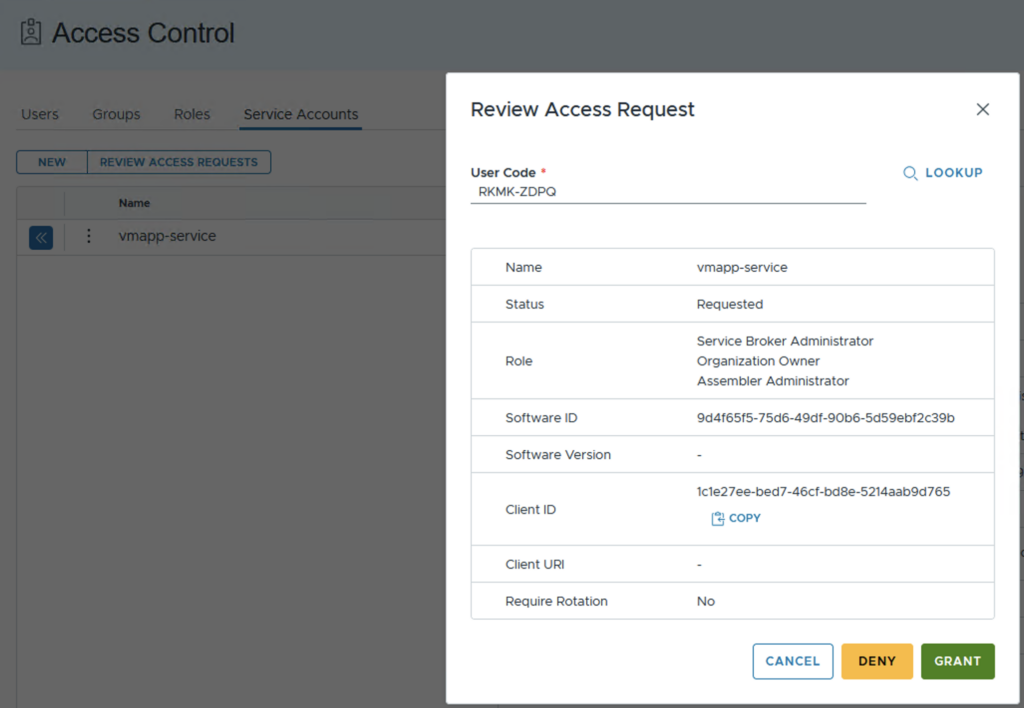
Click LOOKUP and then click Grant
Copy the device_code value from the response you received from the curl command
To generate a refresh token, we have to run another curl command with the right parameters
curl -k 'https://<VCFA_PROVIDER_MANAGEMENT_PORTAL_FQDN>/tm/oauth/tenant/<VCFA_ORGANIZATION_NAME>/token' \
--header 'Content-Type: application/x-www-form-urlencoded' \
--data-urlencode 'client_id=<ORGANIZATION_SERVICE_ACCOUNT_CLIENT_ID>' \
--data-urlencode 'grant_type=urn:ietf:params:oauth:grant-type:device_code' \
--data-urlencode 'device_code=<DEVICE_CODE_FROM_DEVICE_AUTH_RESPONSE>'
Copy the refresh_token from the response

Configure the VM APP Org Account in Operations
Log in to VCF Operations and go to Administration > Integrations, click Add and choose the VCF Automation for VM Apps Organization

To get the VCF Automation Org ID we need to go again to the Automation UI. Click on the arrow beside the user on the top left and copy the ID
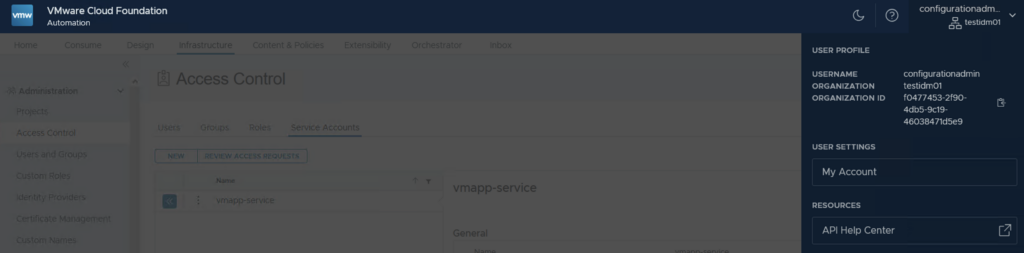
Now we have all the parameters to fill out the needed Account Information

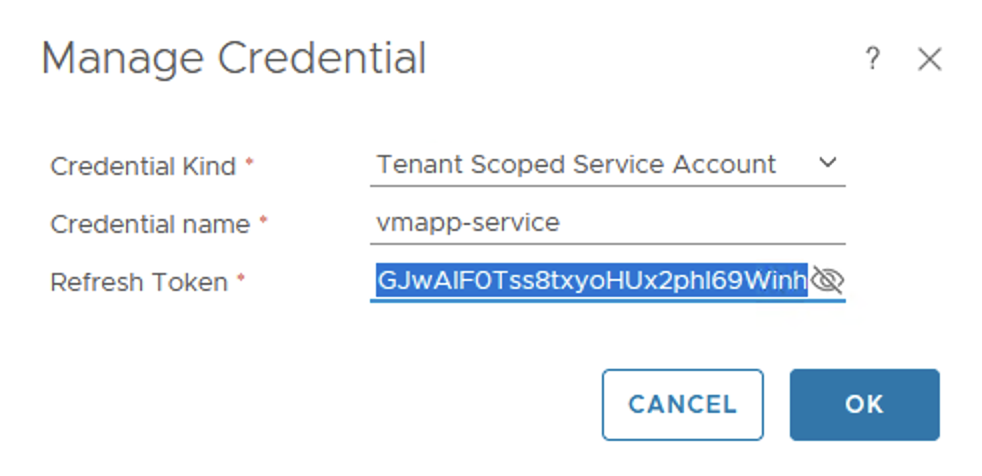
We also need new credentials. Click on the plus symbol to create new credential based on Tenant Scoped Service Account. We have to use the service account and the refresh_token from the previous steps.
Click OK
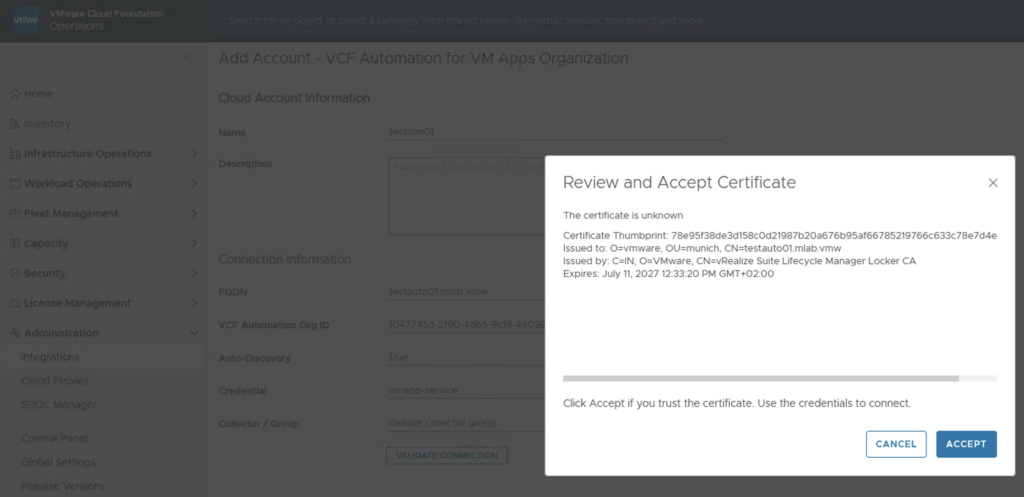
Click on Validate Connection and Accept if a certificate message comes up
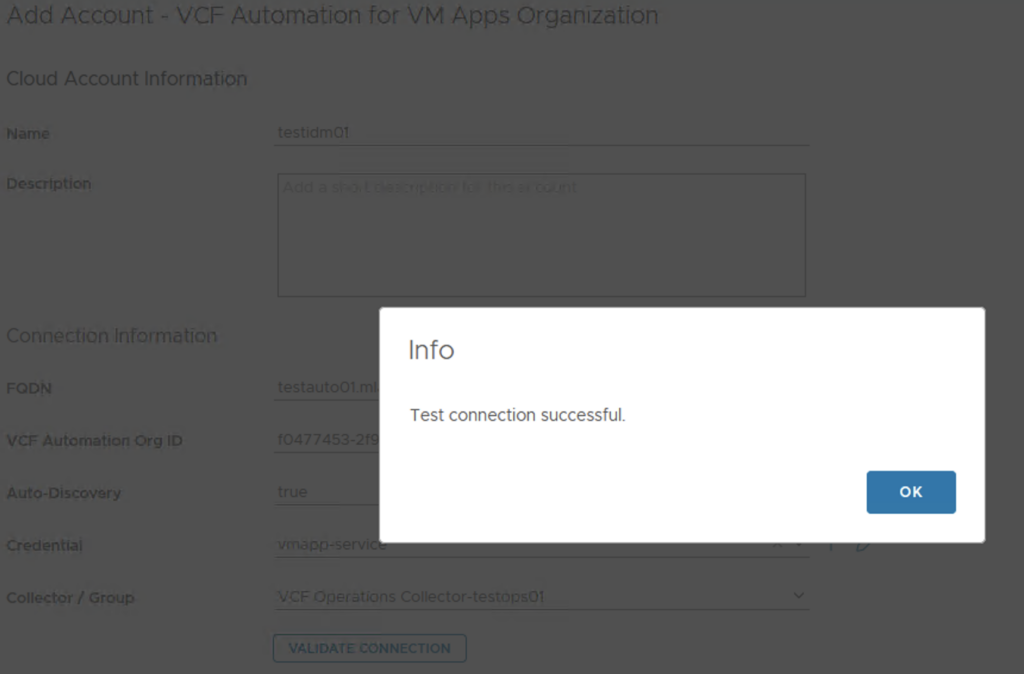
A “Test connection successful” Info should come up
Click OK and ADD to complete the configuration. The integration should now be in place and collecting
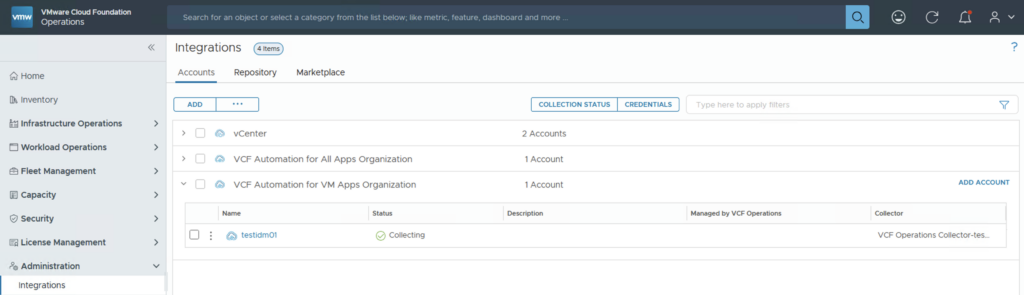
You can now work with the collected metrics and use the dashboards, reports and alerts.
Have fun!

- VCF Automation 9 – Automating Microsoft DNS Entries for VMs via ExternalDNS Service in Supervisor - 6. February 2026
- Installing and Configuring VMware Data Services Manager 9.0.1 on VMware Cloud Foundation 9.0.1 with VCF Automation Integration. - 31. October 2025
- VCF9 – VCF Operations and VCF Operations for Logs installation/configuration without VCF Installer - 6. August 2025
Hey there,
great writeup. However we are struggling to get this right. We want to use vcf9 for vm apps and not the all apps. The configuration requires an organization ID but I can only create an organization using the all apps model, requiring vCenter supervisors. We want to forego the supervisors entirely, this should be possible, but how can we achieve this? It feels like an integral part is missing here.
To allow the creation of a VM-Apps-Org you have to enable the feature flag “VM Apps Organization Creation” in the Provider interface.
Please note there only can be created 1 VM-Apps-Org in the UI.